
Windows
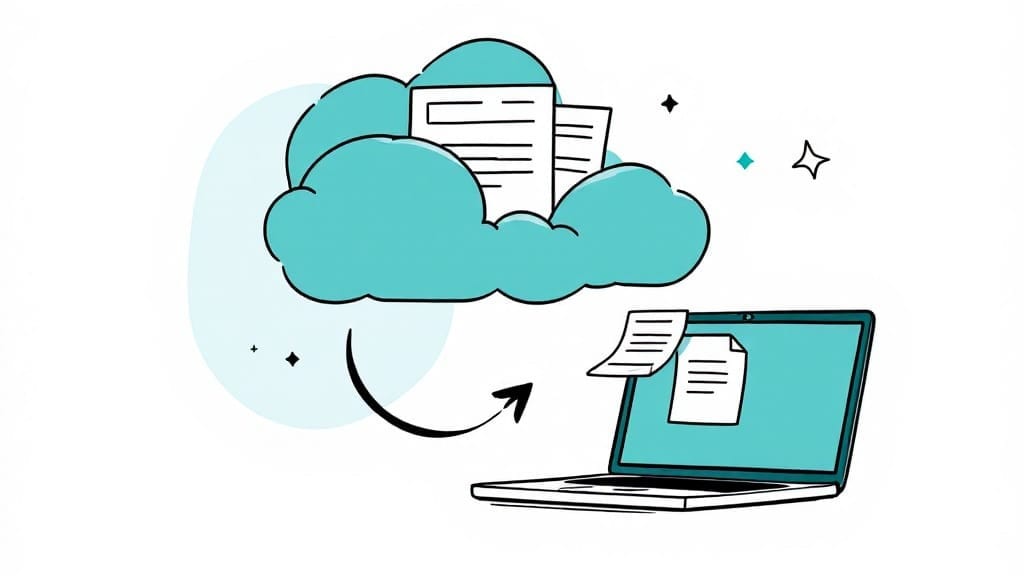
OneDrive files take up space on your computer only when you explicitly save them locally or select 'Always keep on this device.' Files stored exclusively in the cloud occupy your OneDrive storage quota rather than your PC's hard drive, unless you enable syncing. You can monitor and adjust this in Windows Settings or through the OneDrive web interface.
OneDrive's clever system uses cloud storage by default, meaning files stay online until you actively download them.
This design keeps your hard drive clutter-free while still giving you instant access. 💫 The 'Files On-Demand' feature is particularly useful—it lets you peek at cloud files without downloading them, only pulling them locally when you open them.
Think of it like having a digital filing cabinet where only the folders you're actively working with are on your desk.
If you're running low on space, the solution is straightforward: unsync files you don't need frequently or adjust the 'Always keep on this device' settings.
I've found that many users don't realize they can right-click any synced file in File Explorer and choose 'Free up space'—this instantly removes the local copy while keeping the cloud version intact. It's a great way to reclaim gigabytes without losing access to your files.
💡 In This Article
- How OneDrive Storage Syncing Works on Windows
- How to Free Up Space from OneDrive Files on Your PC
How OneDrive storage syncing works on Windows
OneDrive uses a clever two-tier system that separates your local hard drive from cloud storage.
When you upload files to OneDrive through its web interface or mobile app, they reside solely in Microsoft's data centers, consuming only your OneDrive storage quota (typically 5GB free, with paid plans offering up to 6TB).
The magic happens when you access these files from Windows—only then does OneDrive decide whether to download them locally or keep them in the cloud. This is where Files On-Demand comes into play, a feature that lets you interact with cloud files without occupying precious hard drive space.
The technical mechanism involves lazy loading—files remain in the cloud until you explicitly open them. When you double-click a file, OneDrive downloads just that single file to your temporary storage (usually the OneDrive temporary folder in C:\Users\\OneDrive\Temporary).
This creates a virtual file system where files appear in File Explorer but don't consume space until accessed. For example, a 5GB video project file might show up in your OneDrive folder but only take up 0.5MB of space until you open it.
This is why you might see files in your OneDrive folder that don't appear in Windows Storage settings.
Here's where it gets interesting: the 'Always keep on this device' option changes everything. When enabled, files sync permanently to your hard drive, just like traditional downloads. This creates a 1:1 copy in your local OneDrive folder that occupies space immediately.
The difference from traditional downloads is that OneDrive maintains version history and syncs changes across all your devices.
For instance, a 2GB family photo album set to 'Always keep on this device' will consume 2GB on every synced computer, while the cloud version remains available even if you delete the local copy.
Offline access adds another layer. When you mark files as 'Available offline', OneDrive downloads them to your local storage but removes them when you go back online unless you've set them to stay permanently.
This creates a hybrid system where files can exist in three states simultaneously: cloud-only, cloud+local (temporary), or cloud+local (permanent). The key difference from traditional downloads is that OneDrive files maintain their cloud connection—deleting a local copy doesn't delete the cloud version unless you explicitly choose to.
Let's compare this to traditional file storage. A downloaded PDF from a website occupies 100% of its file size immediately on your hard drive with no cloud connection. OneDrive's system, however, gives you the flexibility to work with files that are effectively 99% cloud storage until you need them locally.
This is particularly useful for large files like 4K video projects (20GB+) or multi-gigabyte datasets that you might only need occasionally. The trade-off is slightly slower access when files need to download from the cloud.
Under the hood, OneDrive uses Windows Indexing Service to keep track of all files, whether local or cloud-based. This creates a unified file system view in File Explorer where you can't visually distinguish between locally stored and cloud files.
The actual storage location is hidden in the file properties under the 'Location' field—cloud files show their path as 'OneDrive - Personal' while local files show the physical drive letter. This seamless integration is what makes OneDrive's space-saving features transparent to everyday users.
The whole system runs on Microsoft's Azure Data Centers, which means your files are distributed across multiple secure locations. When you make changes to a local file, OneDrive syncs them in the background (using delta sync technology that only transfers changed portions).
This is why you might see sync status icons in your taskbar—it's not just downloading files, but maintaining a two-way connection between your local storage and the cloud. 💫
Frequently asked questions
Why does OneDrive show files in my folder if they're not taking up space?
OneDrive uses Files On-Demand to display cloud files in your folder without downloading them. These files appear as thumbnails but only occupy 0.5MB or less until you open them. The actual file size only counts against your hard drive when you choose 'Always keep on this device' or open the file for editing.
Can I completely prevent OneDrive from using my computer's storage?
Yes! Open the OneDrive app, go to Settings > Settings, then disable 'Save space and download files as you use them'. For even stricter control, right-click the OneDrive icon in your taskbar and select 'Close OneDrive'. This stops all syncing while keeping your cloud files accessible through the web portal.
What's the difference between 'Free up space' and deleting a file?
'Free up space' removes the local copy but keeps the file in your OneDrive cloud storage, so you can still access it later. Deleting a file removes it from both locations unless you have version history enabled. For large files like 10GB video projects, 'Free up space' is the safer option—it reclaims local storage while preserving your cloud backup.
How do I check exactly how much OneDrive is using on my PC?
Open Windows Settings (Win+I), go to System > Storage, then click 'Show more categories'. Look for the 'OneDrive' entry—this shows both synced files and temporary cache. For detailed breakdowns, open File Explorer, right-click your OneDrive folder, and select 'Properties' to see folder sizes by file type.
Will turning off OneDrive delete my files?
No—turning off OneDrive only stops syncing. Your files remain safely in Microsoft's cloud storage. To access them, sign in to onedrive.live.com from any browser. For local files you've already downloaded, they stay on your computer until you manually delete them.
Final thoughts
So, do OneDrive files take up space on your computer?
The short answer is yes—but it’s not as simple as it seems. ✅ OneDrive uses local storage for files you’ve downloaded or set to "Always keep on this device," but it also syncs smartly to save your space when needed.
By checking your storage settings and managing files proactively, you can keep your PC running smoothly while still enjoying seamless cloud access. Take control—your storage (and sanity) will thank you!