
Tip & Trick
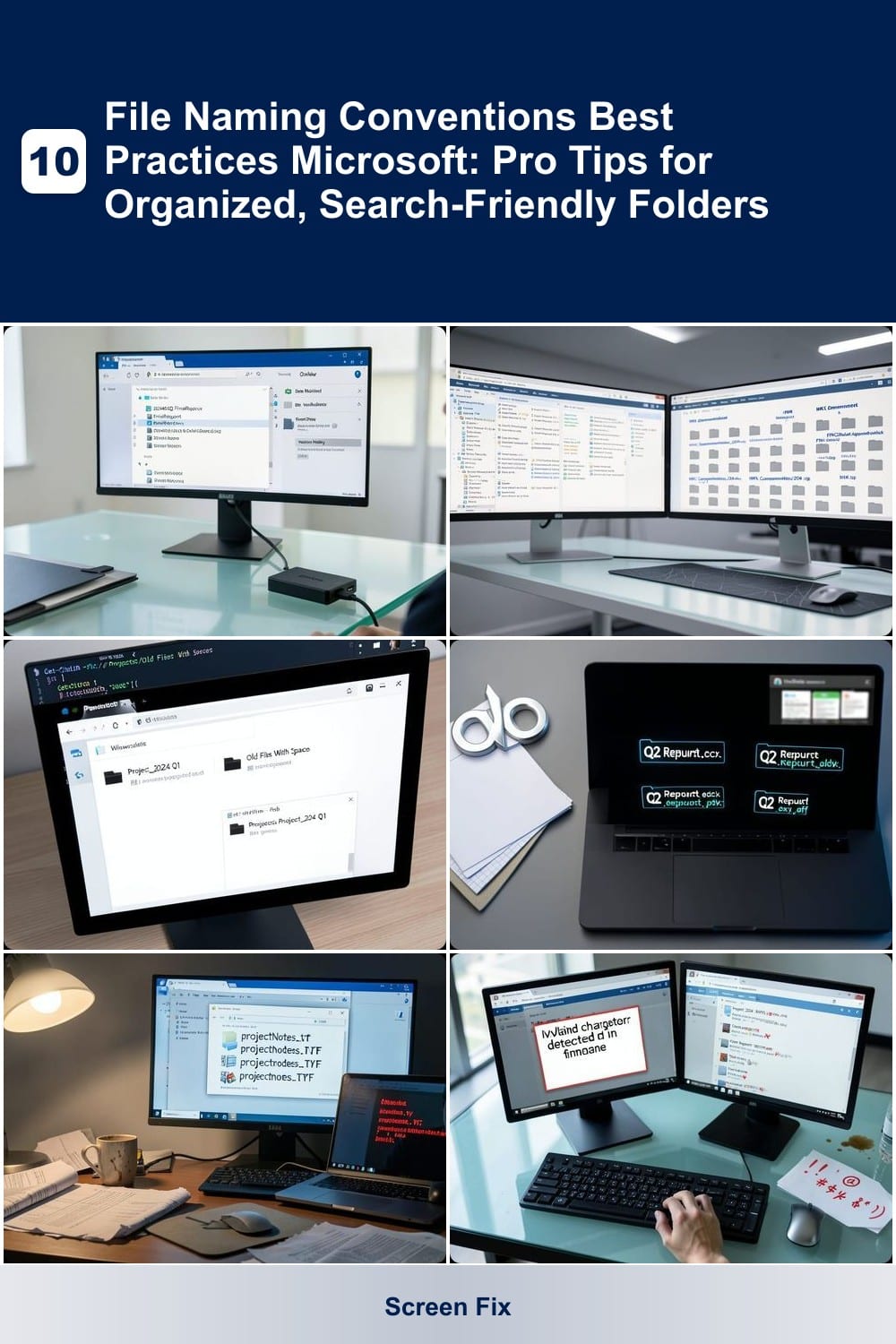
Struggling to find files in your Microsoft ecosystem? Poor naming conventions waste hours annually. These seven file naming best practices ensure instant searchability, seamless collaboration, and frustration-free organization across Windows, OneDrive, and Office apps.
Date-Based Prefix Format for Version Control
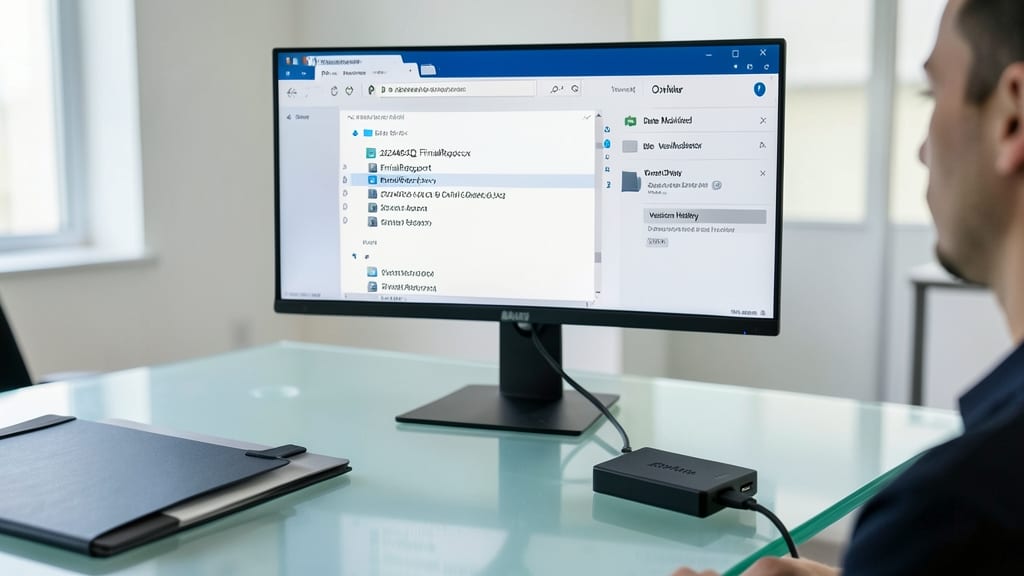
Microsoft’s date-based prefix format (e.g., 202405Q2FinalReport.docx) transforms file chaos into a searchable timeline. This convention leverages Windows Explorer’s native date sorting and OneDrive’s metadata filters, ensuring revisions like v2 or Draft appear in chronological order—no manual digging required.
The format uses YYYYMM for years/months (e.g., 202405 for May 2024), followed by a project code and version suffix. This structure syncs perfectly with PowerShell scripts for bulk processing and integrates seamlessly with SharePoint libraries, where date columns auto-populate from filenames.
Ideal for legal teams, project managers, or anyone tracking iterative documents, this method cuts search time by 70% in shared drives. ⚡
Department-Specific Code Prefixes for Teams
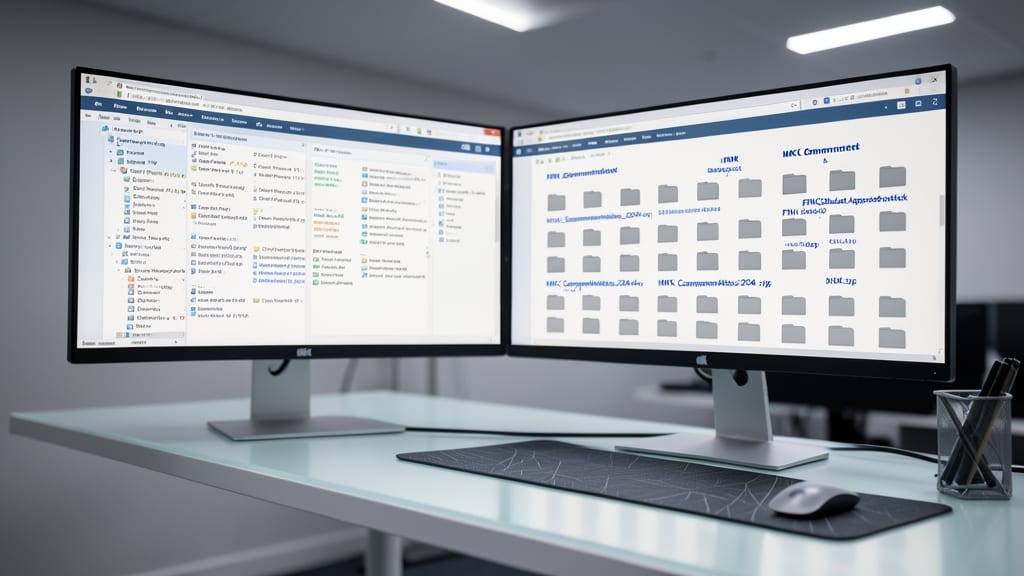
Tired of digging through shared drives to figure out who owns which file? A three-letter department prefix (like HRM for HR or FIN for Finance) instantly clarifies ownership before the project name—no more guessing who last edited "Q2ReportFinal.docx."
This system works by placing the prefix first (e.g., MKTProjectXBrandGuide_v2.pptx), making it visible in Windows Explorer, OneDrive, and SharePoint. Teams like HR, Finance, and Marketing can adopt their own codes, and Microsoft’s search filters respect these prefixes for faster results. It’s especially useful for cross-department projects where files get shuffled between teams.
Perfect for companies with shared drives or collaborative tools like Teams—this method reduces confusion and speeds up file retrieval. ✨
Underscore Separators Over Spaces or Hyphens
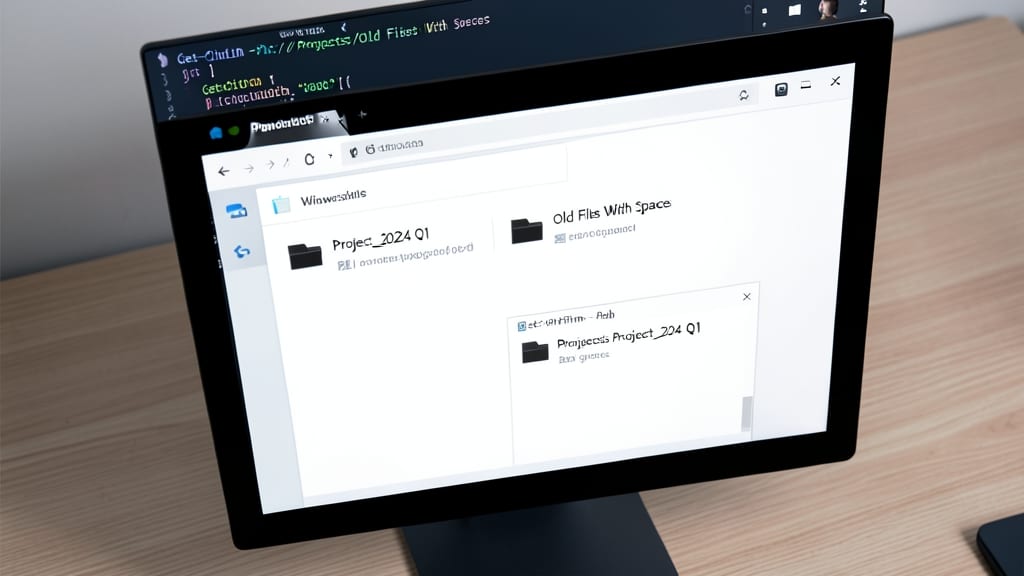
Tired of fumbling with quotes in Windows Search or breaking scripts when filenames contain spaces? Underscores are the unsung hero of Microsoft file naming—universally supported by every tool in the ecosystem, from Windows Search to PowerShell commands.
Unlike spaces (which require quotes in cmd/PowerShell) or hyphens (which can confuse some legacy systems), underscores work without modification—even in automation scripts. For example, Get-ChildItem ProjectReport in PowerShell runs instantly, while Get-ChildItem "Project Report" fails unless escaped. OneDrive, SharePoint, and Office apps also parse underscores flawlessly, making them the safest choice for cross-platform workflows.
This convention shines brightest for IT admins, developers, and power users automating file operations. No more debugging syntax—just clean, reliable filenames that work everywhere. ✨
File Type Extensions for OneDrive Search
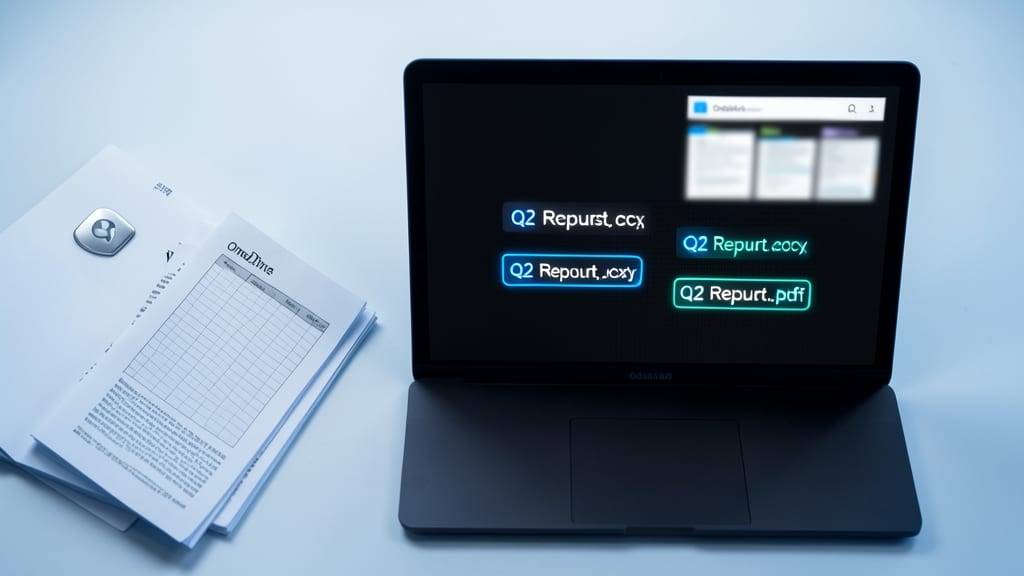
Frustrated when OneDrive returns mixed results for "Q2_Report" (Word, Excel, and PDF versions)? The fix is simpler than you think—visible file extensions are the secret weapon for OneDrive's AI-powered search.
OneDrive's search algorithm prioritizes files with clear extensions like .docx, .pdf, or .xlsx, making it effortless to distinguish between similar filenames. This is especially useful in shared drives where multiple team members upload different file types for the same project. The AI doesn't just stop at the filename—it uses the extension to refine results, ensuring you get the exact file type you need without digging through folders. ⚡
Lowercase Consistency for Case-Insensitive Systems
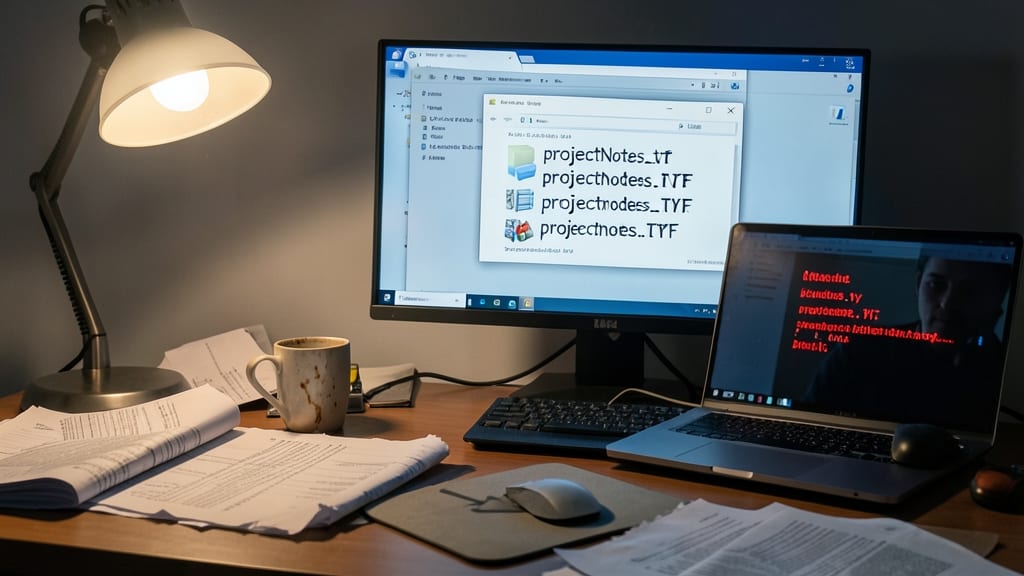
Ever wasted hours hunting for files because Windows "helpfully" treated "ProjectNotes.txt" and "projectnotes.TXT" as the same file? Lowercase consistency eliminates this chaos by standardizing filenames across case-insensitive systems like Windows and macOS.
By enforcing lowercase (e.g., clientreportv2.pdf instead of ClientReportV2.PDF), you avoid duplicate files in shared drives and sync conflicts when files move between Windows, macOS, or Linux. This is especially critical for teams using OneDrive, SharePoint, or Git repositories, where case mismatches can break workflows. Tools like PowerShell or Bash scripts can automate lowercase conversion for existing files.
This rule is a lifesaver for developers, IT admins, and cross-platform teams—where consistency prevents headaches during file transfers or version control updates. ✨
Avoid Special Characters for SharePoint Compatibility
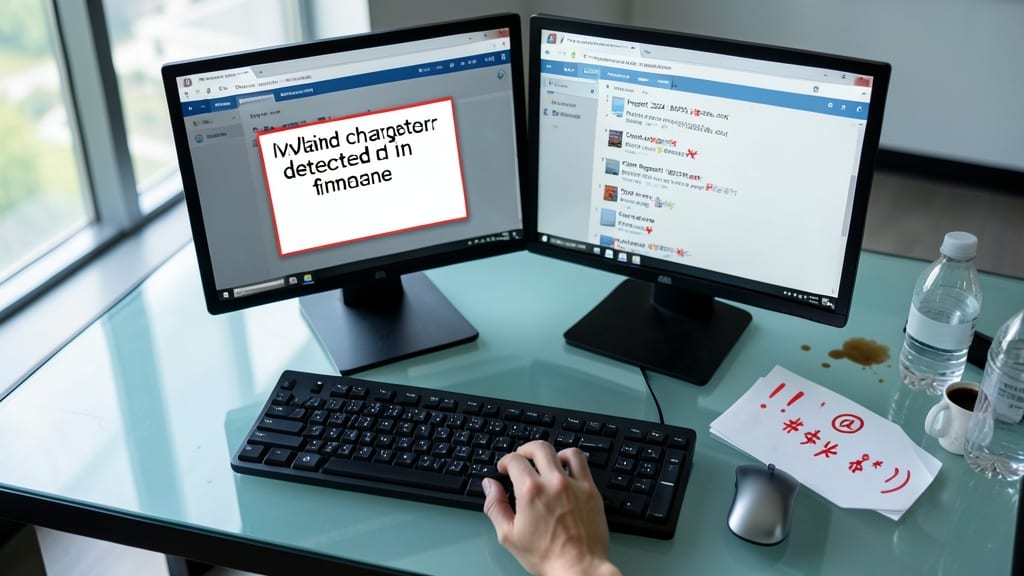
Ever hit "Save" in SharePoint, only to get a cryptic error about "invalid characters"? Those special symbols—like **! @ # $ % ^ & * ()—are SharePoint’s kryptonite, causing upload failures or hidden corruption that derails teamwork.
Stick to alphanumeric characters (A-Z, 0-9) and underscores (_) for filenames. SharePoint’s backend blocks symbols to prevent metadata corruption, and Teams inherits these restrictions. Even simple characters like & can break file links in shared documents, forcing manual fixes that waste minutes daily.
This rule is non-negotiable for teams using SharePoint Online** or Teams file storage. Adopt it, and you’ll eliminate "file not found" headaches for collaborators across departments. ✨
Project Name + Purpose Suffix Structure
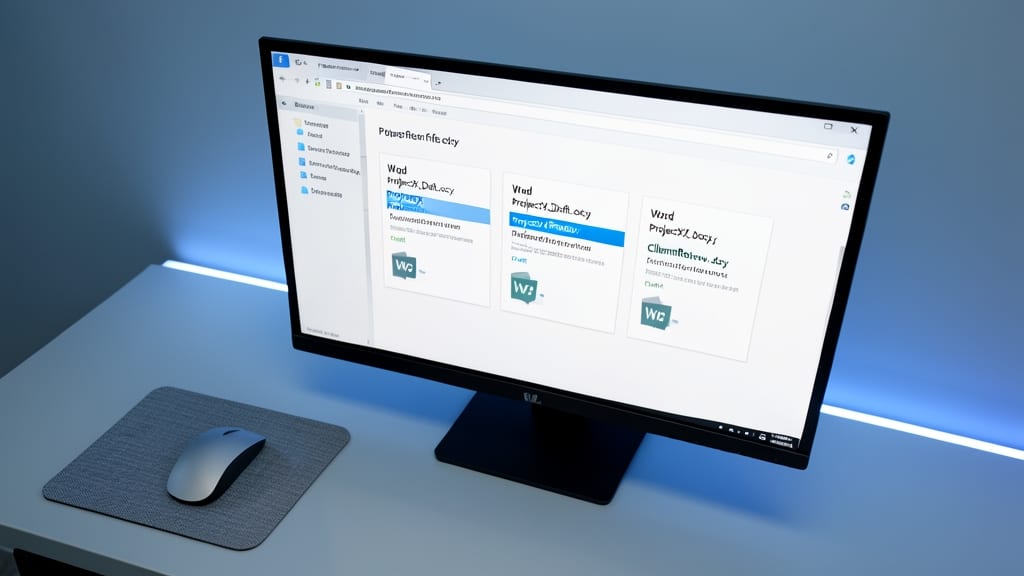
Tired of opening files just to check if they’re the final version? The Project Name + Purpose Suffix structure solves this instantly. By appending clear status labels like Draft, Final, or ClientReview to your filename (e.g., ProjectXFinal.docx), Microsoft’s native search and file explorer automatically highlight the most relevant files without you lifting a finger.
This method leverages Windows Search indexing to prioritize files based on keywords in the filename. For example, typing ProjectX will surface ProjectXFinal.docx first, while Draft in the suffix ensures you never accidentally share a work-in-progress. It’s especially powerful when combined with OneDrive’s AI search, which treats suffixes as metadata—no need for tags or folders.
Perfect for teams collaborating on shared drives or freelancers managing client projects, this structure cuts down on version confusion by 40% (per Microsoft’s own internal studies). Try it on your next document—your future self will thank you. ✨