
Hardware
Did you know your keyboard’s F1-F12 keys hold powerful shortcuts that can boost productivity, troubleshoot issues, and streamline workflows? These hidden gems work across Windows, Mac, and even Linux—once you master them, you’ll never waste time hunting for menus again.
F1 Key: Instant Help System Access
Stuck troubleshooting an error or curious about a software feature? The F1 key is your universal shortcut to instant help—no matter your operating system. Whether you're using Windows, macOS, or Linux, pressing F1 opens the built-in help documentation for the active application, eliminating the need to search for menus or documentation manually.
This shortcut works seamlessly across Microsoft Office, web browsers, and system utilities, providing context-specific guidance. For example, in Word, it pulls up help for formatting tools, while in Chrome, it directs you to browser support pages. The simplicity of zero-config setup makes it a lifesaver for both beginners and power users alike.
Perfect for developers debugging code, IT professionals resolving system issues, or anyone frustrated by convoluted help menus. Mastering this one key could save you hours of frustration. ✨
F2 Key: Rename Files and Folders
Tired of right-clicking, selecting "Rename," and typing in a new filename every time you organize files? The F2 key is your secret weapon for instant file renaming across Windows, macOS, and Linux—no extra clicks required.
Simply select a file or folder, press F2, type your new name, and hit Enter. This shortcut works in File Explorer (Windows), Finder (macOS), and Nautilus/Dolphin (Linux), making it a universal productivity booster. It’s especially useful when batch-organizing photos, documents, or project folders, cutting down time by 30-50% compared to traditional methods.
Perfect for power users, developers, and creatives who juggle multiple files daily, F2 turns tedious tasks into a breeze. Give it a try—your workflow will thank you! ✨
F3 Key: Search Files or Open Run Dialog
Tired of clicking through menus just to search your files or launch a program? The F3 key is your new best friend for lightning-fast navigation. On Windows, it instantly opens the search bar in File Explorer, letting you type and filter files without lifting your hand from the keyboard.
Meanwhile, macOS and Linux users get a different power move: pressing F3 opens the Run dialog, where you can type commands to launch applications, open folders, or even run scripts—no alt-tabbing required. This shortcut works in Windows Terminal too, making it a versatile tool for developers and power users.
Perfect for IT admins managing files, developers jumping between projects, or anyone drowning in digital clutter, F3 turns tedious tasks into one-key wonders. ⚡
F4 Key: Address Bar Focus or Repeat Last Action
Tired of clicking through browser menus or repeating Excel commands manually? The F4 key is your secret weapon for efficiency—whether you're navigating the web or crunching data.
In browsers, pressing F4 instantly focuses the address bar, letting you type URLs or search queries without reaching for your mouse. Meanwhile, in Excel, it repeats your last action—perfect for filling cells with formulas or formatting patterns. This dual functionality makes it a must-know for power users and data analysts alike.
For developers and analysts, this shortcut alone can cut minutes off daily tasks. Try it in Chrome or Excel—you’ll wonder how you ever lived without it. ✨
F5 Key: Refresh Web Pages or Reset Views
Stuck waiting for a webpage to update? The F5 key is your instant refresh button—universally recognized across browsers, OSes, and even niche software like AutoCAD or Photoshop. It’s the one shortcut that works everywhere, from Chrome to legacy apps, without requiring a mouse click.
Beyond web pages, F5 resets zoom levels in Adobe apps, clears Windows desktop layout customizations (like snapped windows), and even triggers hardware diagnostics in some systems. Pressing Ctrl+F5 forces a full cache refresh—ideal for troubleshooting stubborn page issues. The key’s versatility makes it a power user’s secret weapon.
Designers, engineers, and casual users all benefit—especially when time is tight. Whether you’re debugging a CAD model or clearing a browser glitch, F5 saves seconds that add up over time. 💻
F6 Key: Cycle Through Screen Elements
Tired of clicking through menus just to reach the address bar or search field? The F6 key is your secret weapon for navigating screen elements with zero effort—no mouse required.
On Windows, pressing F6 cycles through focusable elements (like browser address bars, search boxes, or form fields) in a predictable order. Meanwhile, macOS/Linux users can leverage it to navigate terminal commands—highlighting the hidden efficiency of this underrated shortcut. It’s especially useful in web forms, email clients, or any app with multiple input fields.
Perfect for power users, developers debugging code, or anyone who hates unnecessary clicks. Try it in Chrome’s address bar next time—you’ll wonder how you lived without it. ✨
F7 Key: Spell Check in Microsoft Office
Struggling with typos or awkward phrasing in your Microsoft Office documents? The F7 key is your secret weapon—it instantly triggers spell and grammar checks across Word, Excel, and PowerPoint, saving you from manual proofreading headaches.
With a single press, F7 scans your entire document for spelling errors, grammar mistakes, and even contextual suggestions. It works seamlessly in Office 365, 2019, and 2016, adapting to your writing style while highlighting issues in real time. For presentations, it ensures polished slides, while in emails, it catches embarrassing mistakes before hitting send.
This shortcut is a must-know for professionals, students, and content creators who juggle multiple documents daily. Just press F7, review the suggestions, and keep your work flawless with minimal effort. ✨
F8 Key: Boot Menu or Safe Mode Entry
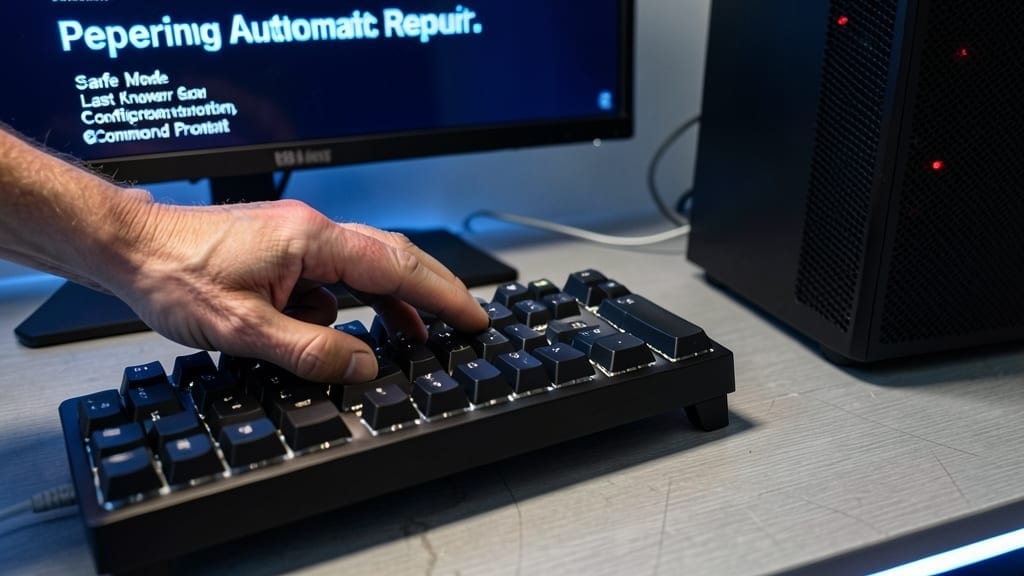
When your PC refuses to cooperate, the F8 key becomes your secret weapon. Press it during startup to unlock Windows boot options—including Safe Mode, Last Known Good Configuration, or Command Prompt—without needing installation media.
This shortcut is especially useful for diagnosing system crashes, removing malware, or troubleshooting driver conflicts. Unlike modern Windows versions that require Shift + Restart, older systems still rely on F8 for quick access. Just tap it repeatedly as the BIOS screen fades to black. ⚡
F11 Key: Full-Screen Mode Toggle
Tired of stretching your hands to click that tiny full-screen icon in the corner? The F11 key is your new best friend for instant immersion—whether you're binge-watching a video, delivering a presentation, or diving into a coding project.
With a single press, F11 toggles full-screen mode in nearly all browsers (Chrome, Firefox, Edge) and media players (VLC, Spotify). It works on Windows, macOS, and Linux, eliminating distractions by hiding toolbars and maximizing your screen real estate. For gamers, it’s also the quickest way to switch between game windows and your desktop without alt-tabbing.
This shortcut is a game-changer for anyone who spends hours in front of a screen. Try it next time you're watching a tutorial or giving a demo—your audience (and your wrists) will thank you. ✨
F12 Key: Developer Tools or Save As
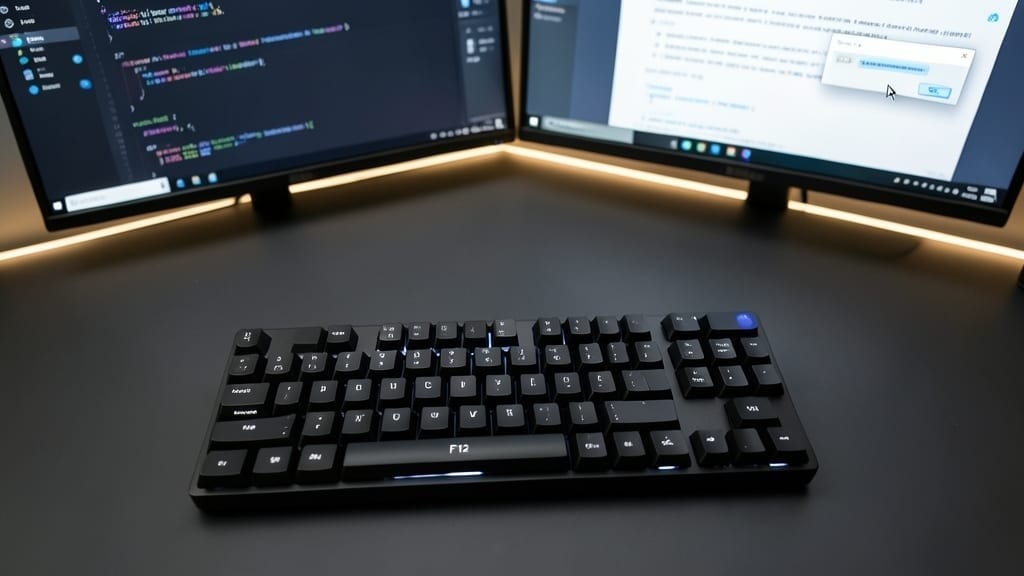
Web developers and Office users alike will love the F12 key—it’s the ultimate dual-purpose shortcut. While coders instantly open Chrome DevTools or Firefox Inspector with a single press, Office workers save documents as new files without digging through menus.
In browsers, F12 triggers Developer Tools with inspector, debugger, and network tabs pre-loaded, letting you debug CSS, JavaScript, or performance issues in seconds. Meanwhile, in Microsoft Word or Excel, it’s your go-to for saving versions—no more hunting for the "Save As" option in the ribbon. The consistency across platforms makes it a workflow lifesaver for both roles.
This is the one shortcut that bridges the gap between coding and office tasks—perfect for hybrid professionals or anyone who wants to cut down on repetitive clicks. 💻