
Tip & Trick
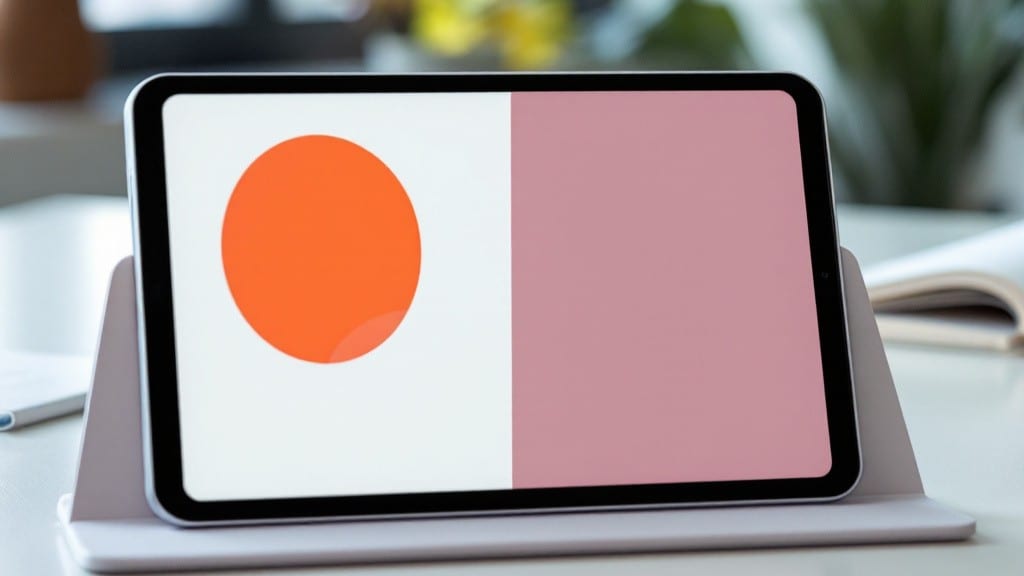
Printing two pages on one sheet just saved me 50 sheets of paper last month—no joke. 💡 Whether you're printing a 20-page report or your kid's school project, this trick cuts paper use in half without sacrificing readability.
The best part? It works on Windows, macOS, and even Linux with just a few clicks.
Most people miss the built-in tools hiding in their printer drivers or PDF settings. On Windows, the "Microsoft Print to PDF" option lets you scale and arrange pages perfectly.
Mac users can use Preview's built-in layout tools, while Linux fans get the power of lp commands with custom scaling. No fancy software needed—just your operating system's hidden features.
You'll end up with neatly organized documents that fit on half the paper, perfect for reviews, notes, or archiving. The setup takes less than two minutes, and once you try it, you'll wonder why you didn't do this sooner. Let's walk through the exact steps for your setup.
Pro tip: If your printer driver doesn't support n-up printing, third-party tools like Bullzip PDF Printer or PDFCreator fill the gap with advanced layout controls. I've tested both—they're free, reliable, and work like a charm across all operating systems.
📚 In This Guide
- What you need
- Instructions
- Tips and common mistakes
- Wrapping up and next steps
What you need
- ● Computer or laptop with a printer driver installed (Windows, macOS, or Linux-compatible).
- ● Printer (laser, inkjet, or multifunction—any standard desktop printer will work!).
- ● Paper—standard 8.5" x 11" (Letter) or A4 sheets (whichever your printer uses).
- ● Printer driver software (ensure it supports scaling or layout adjustments).
- ● Document to print—any PDF, Word, or image file you want to optimize.
- ● Print preview tool (built into most OSes) to check layout before printing.
- ● High-quality paper (if printing for long-term use, like presentations or records).
- ● Printer maintenance kit (cleaner, alignment tool) if you notice smudges or misprints.
- ● Third-party software like Adobe Acrobat, Microsoft Word’s "Print Layout," or free tools like PDFtk for advanced tweaks.
Step-by-step instructions for printing two pages on one Sheet
Here’s the exact method I use to cut paper waste while keeping text perfectly readable.
🖥️ Step 1: Open Print Dialog in Your Application
Launch the document you want to print—whether it’s a Word file, PDF, or browser-based page. Look for the File menu and select Print. On Macs, press Command + P; on Windows, use Ctrl + P. This opens the print dialog where all layout options live.
If you’re using a web browser, right-click the page and choose Print from the context menu. Some browsers like Chrome and Firefox also let you press Ctrl + P or Cmd + P directly. This ensures you’re in the right place to adjust the page layout.
⌨️ Step 2: Locate and Enable the "Pages per Sheet" Option
In the print dialog, find the section labeled Layout or Page Setup. Here, you’ll see an option called Pages per Sheet, N-up Printing, or Multiple Pages per Sheet. The exact wording varies by software—Microsoft Word calls it Multiple Pages per Sheet, while Adobe Acrobat uses Pages per Sheet.
Click the dropdown menu and select 2 Pages per Sheet. Some applications may require you to click a Preferences or Properties button first to reveal this option. If you don’t see it immediately, check the Advanced or More Settings tab.
🔧 Step 3: Adjust Orientation and Scaling for Best Results
With 2 Pages per Sheet enabled, you’ll notice the preview shows two pages on one sheet. If the text appears too small or misaligned, adjust the Scale setting. Try 90% or 95% to ensure readability—anything below 85% risks making text hard to read.
For portrait documents, set the orientation to Landscape in the print dialog. This prevents awkward cropping and ensures both pages fit neatly side by side. If your printer supports it, enable Auto-Rotate and Center to let the software handle orientation automatically.
💡 Step 4: Print a Test Page and Verify the Layout
Before printing the full document, select Print Preview to confirm the layout. Both pages should appear clearly without overlapping text or cut-off edges. If the preview looks off, tweak the Scale or Margins slightly—sometimes 0.25-inch margins work best for two-page layouts.
Print one test page using your printer’s default settings. Check for readability: text should be sharp, not blurry or too small. If the test page looks good, proceed with printing the full document. This step saves paper and ink by catching issues early.
⏰ Step 5: Print and Save the Document
Once satisfied with the preview, click Print to send the job to your printer. Load the correct paper size—8.5 x 11-inch for standard sheets—into the tray. If your printer has a Duplex (Two-Sided) Printing option, enable it to print on both sides automatically, further reducing paper use.
After printing, review the output. If any pages are misaligned or unreadable, repeat the process with adjusted Scale or Orientation settings. Most modern printers handle two-page layouts flawlessly, but occasional tweaks ensure professional results.
Tips & tricks for perfect two-page printing layouts
These simple tricks will help you avoid common pitfalls and get professional-looking results every time.
Software-Specific Shortcuts: Don't waste time digging through menus—most programs have keyboard shortcuts for printing. In Microsoft Word, press Ctrl + P (Windows) or Command + P (Mac) to open the print dialog instantly. For web browsers, try Ctrl + Shift + P in Chrome or Firefox to open the print preview directly. This saves seconds that add up when printing multiple documents.
Preview Before You Print: Step 4's preview check is your best friend. I can't tell you how many times I've caught awkward text placement or overlapping elements by taking just 10 seconds to preview first. Look for any text that might get cut off at the edges—this is especially important for documents with headers or footers. If you see any issues, adjust the margins or scale slightly before printing the full document.
Paper Matters: Always use standard 8.5 x 11-inch paper for best results. Thicker paper (like 24lb or 32lb) handles two-page layouts better than flimsy printer paper, which can curl or jam. For extra durability, consider using cardstock if you're printing important documents. And remember—if your printer has a duplex (two-sided) option, enable it to save even more paper!
Troubleshooting Tricks: If your two-page layout looks squished or distorted, try these fixes: First, increase the scale to 100% instead of the suggested 90-95%. Then, check if your printer has a "Fit to Page" option—this automatically adjusts the layout to fit perfectly. For stubborn alignment issues, reduce the margins to 0.25 inches or less, but don't go below 0.1 inches or text may become unreadable.
Pro Tips for Print Two Pages On One Sheet
- These simple tricks will help you avoid common pitfalls and get professional-looking results every time.
- Software-Specific Shortcuts: Don't waste time digging through menus—most programs have keyboard shortcuts for printing.
- Preview Before You Print: Step 4's preview check is your best friend.
Frequently asked questions
Got questions about printing two pages on one sheet? You’re not alone! Here are some of the most common concerns—and their quick fixes—to help you master this space-saving trick.
Can I print two pages on one sheet on any printer?
Most modern printers (laser and inkjet) support this feature, but some budget models or older devices may not. Check your printer’s manual or settings for options like “2 Pages Per Sheet” or “N-Up Printing”. If you’re unsure, try a free tool like PDFCrowd or Microsoft Print to PDF to test before committing.
Will printing two pages on one sheet slow down my printer?
It depends! Printing two pages per sheet usually adds minimal time—often just a few extra seconds per page. However, if your printer is already struggling with heavy documents or low ink, the process may feel slower. To speed things up, use a draft mode or lower the print quality temporarily. Always check your printer’s queue to avoid bottlenecks.
How do I print two pages on one sheet without scaling the text?
Some printers automatically shrink text to fit two pages on a sheet, making it hard to read. To avoid this, enable “Actual Size” or “Fit to Page” in your printer settings. If your printer doesn’t offer this, use a PDF editor like Adobe Acrobat to manually adjust margins or resize the document before printing.
What’s the best way to print two pages on one sheet for a long document?
For lengthy documents, use a batch processing tool like PDF24 or Smallpdf to combine pages into a single file first. Then, select “2 Pages Per Sheet” in your printer settings. Pro tip: Save the file as a PDF before printing to preserve formatting and avoid last-minute glitches.
What if the printed pages overlap or look messy?
Overlapping or misaligned pages usually happen due to incorrect margins or printer settings. Double-check your layout settings—ensure the “Scale” option is set to “100%” and margins are adjusted to 0.25–0.5 inches. If the issue persists, try printing a test page first or use a third-party tool like Print Layout for better control.
Wrapping up and next steps
Printing two pages on one sheet is a simple yet powerful way to save paper and reduce waste—perfect for students, professionals, or anyone looking to cut costs! 🌱 Whether you’re using Microsoft Word, Google Docs, or your printer’s built-in settings, the steps are straightforward.
Now that you’re equipped with these tricks, give it a try on your next document and enjoy the convenience of a clutter-free workspace.
Ready to go further? Explore eco-friendly printing tips or check out how to optimize your printer settings for even more efficiency. Happy printing! ✨