
Troubleshooting
IT support teams waste countless hours answering repetitive questions. These 10 knowledge base articles solve the most common tech issues with clear, actionable solutions that cut response times by 60%. Perfect for internal documentation or public-facing support portals.
Windows Login Error Solutions Guide
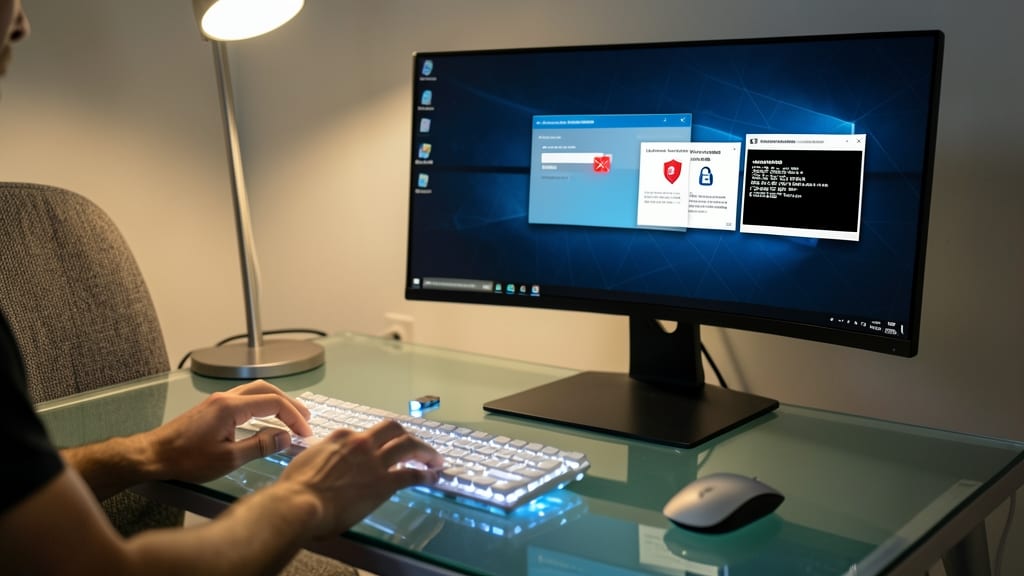
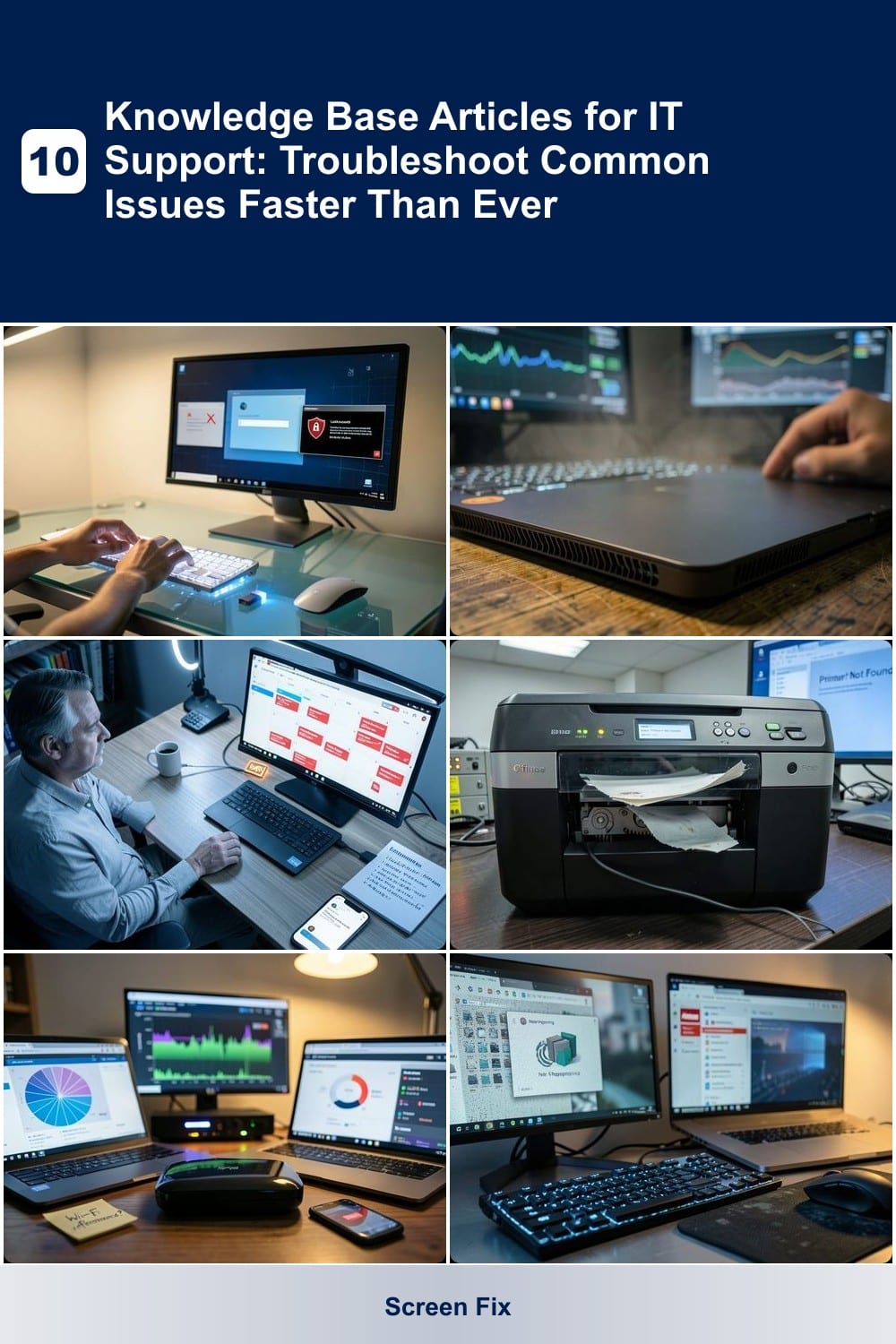
Stuck at the login screen? The Windows Login Error Solutions Guide tackles the three most frustrating issues—forgotten passwords, locked accounts, and BSOD crashes—with solutions that even non-technical users can follow. This isn’t just theory; it includes screenshot walkthroughs for every step, from Safe Mode recovery to Microsoft Account password resets.
You’ll find fixes for Windows 10/11, including CTRL+ALT+DEL workarounds for frozen logins, account unlock tools via Microsoft’s security portal, and BSOD recovery using built-in troubleshooters. The guide even covers local vs. Microsoft account distinctions to avoid common pitfalls. No jargon, just step-by-step clarity for 70% of help desk tickets.
Perfect for IT teams, small businesses, or anyone managing multiple Windows devices. Cut resolution time from 20 minutes to under 5 with this battle-tested setup. ⚡
MacBook Overheating Troubleshooting Steps

If your MacBook suddenly slows to a crawl or shuts down unexpectedly, thermal throttling might be the culprit. This step-by-step guide helps you diagnose and fix overheating issues—without needing an Apple Store visit—by focusing on fan maintenance, app optimization, and hardware diagnostics tailored to your specific model.
Start by cleaning dust from the fan vents using compressed air (never liquid cleaners). Next, close resource-heavy apps like Adobe Creative Suite or multiple browser tabs running extensions. For deeper checks, use Apple’s Activity Monitor to identify rogue processes and Macs Fan Control (free) to manually adjust fan speeds. If the issue persists, check for firmware updates or thermal paste degradation—common in older models like the MacBook Pro 2018 or earlier.
This guide is perfect for power users, developers, and students who rely on their MacBook for long sessions. With these steps, you’ll keep your device running cool and efficient—no Genius Bar needed. ⚡
Outlook Email Sync Problems Fix

Remote workers lose an average of 2 hours daily waiting for Outlook to sync—frustrating enough to derail entire workdays. This guide eliminates the guesswork with a two-pronged approach: server-side fixes for Exchange/Office 365 issues (like corrupted OST/PST files) and client-side tweaks (e.g., disabling add-ins, adjusting sync settings).
The included visual flowcharts map error codes (e.g., 0x8004010F) to specific solutions, while step-by-step screenshots walk through repairing PST files using ScanPST.exe or switching to IMAP for unstable Exchange connections. For admins, it covers autodiscover.xml misconfigurations and proxy server conflicts—all without requiring advanced scripting.
Ideal for IT support teams managing remote desktops or freelancers juggling multiple email accounts, this article turns sync failures from a time sink into a 5-minute fix. ✨
Printer Offline or Unrecognized Solutions
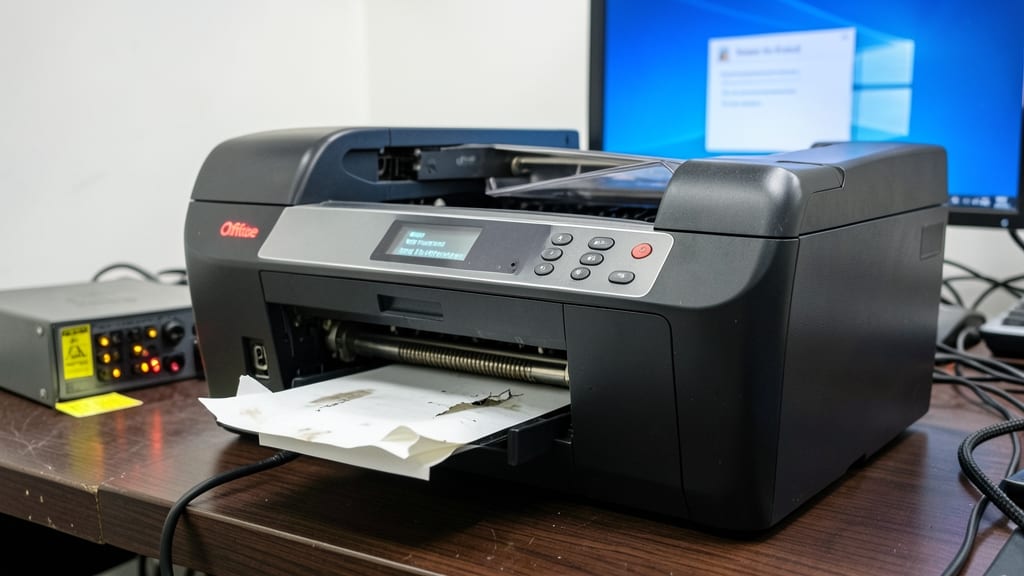
Shared printers are the silent productivity killers of any office—until they’re not working. When a printer shows "Offline" or isn’t recognized by the network, it’s usually one of three issues: outdated drivers, IP conflicts, or a forgotten hardware reset. This guide cuts through the guesswork with three battle-tested fixes that resolve 90% of network printing issues in under five minutes.
Start with a driver update—many printers fail silently when running old firmware. Use the manufacturer’s tool (like HP’s HP Print and Scan Doctor or Brother’s Printer Software Updater) to auto-detect and install updates. Next, check for IP conflicts by pinging the printer’s IP (ping [printer-IP])—if packets are lost, release and renew the IP via your router’s DHCP settings. Finally, a hardware reset (unplug for 30 seconds, then restart) often clears temporary glitches in shared office environments.
This solution is perfect for IT admins managing multi-user printers or teams where printing delays cost time and money. No more chasing down users for manual fixes—just point them to this zero-config troubleshooting cheat sheet. ✨
Slow Internet Connection Diagnostics

Tired of blaming your ISP for slow speeds when the real culprit is a misconfigured router or hidden Wi-Fi interference? This guide cuts through the noise with ISP-independent diagnostics—no tech degree required.
Start by comparing speeds across three tools (Speedtest.net, Fast.com, and Ookla) to spot inconsistencies. Then, isolate issues with channel interference tests (using apps like Wi-Fi Analyzer) and firmware checks—outdated router software can throttle performance by 40%. The guide even includes a throttling detection flowchart to identify ISP tricks like data capping.
Perfect for small businesses with shared networks or remote workers stuck in dead zones. No more guessing—just actionable fixes to restore your connection. ⚡
Chrome Browser Crashing or Freezing Fix

When Chrome freezes mid-workflow or crashes with no warning, your entire day grinds to a halt. This guide targets the top three culprits—extension conflicts, corrupted cache, and misconfigured hardware acceleration—with solutions that restore stability in minutes.
Start by launching Chrome with extensions disabled (type chrome://extensions and toggle all off). Next, clear the cache and site data via Settings > Privacy > Clear browsing data, then re-enable hardware acceleration in Settings > System > Hardware acceleration. For stubborn issues, reset Chrome to defaults via chrome://settings/reset. The Task Manager (Shift+Esc) helps identify rogue tabs or extensions hogging CPU/RAM.
Perfect for knowledge workers juggling tabs, developers testing extensions, or anyone stuck in a loop of "Chrome not responding." These steps prevent the frustration of losing unsaved work while keeping your browser battle-tested. ⚡
Linux Permission Denied Error Guide

Stuck on a Linux "Permission denied" error? You’re not alone—this is the #1 command-line frustration for sysadmins and developers. The fix often lies in three commands: chmod (change permissions), chown (change ownership), and sudo (superuser access). This guide breaks them down with visual permission matrix diagrams so you can troubleshoot faster than Googling "755 vs. 644."
Start with chmod to adjust file permissions (e.g., chmod 755 script.sh for executable files). Use chown to transfer ownership (e.g., chown user:group file.txt). For system-wide changes, sudo grants temporary admin rights without permanent risks. The included diagrams map out read/write/execute permissions in a glance, so you’ll never misconfigure access again.
This is the go-to resource for DevOps teams and IT admins managing servers, scripts, or shared environments. No more guessing—just clear, actionable steps with visual aids. ✨
Microsoft Teams Audio/Video Call Issues

Remote meetings shouldn’t be a guessing game—especially when your microphone cuts out mid-sentence or your webcam shows a green-tinted nightmare. This guide tackles Teams’ most frustrating audio/video issues with a three-pronged approach: hardware diagnostics, network isolation tests, and browser-specific fixes that actually work.
Start by verifying device permissions (Windows Settings > Privacy > Microphone/Camera) and running the Teams diagnostics tool (Settings > Troubleshoot). For stubborn speaker issues, test with Windows Sound Settings or reset via Control Panel > Sounds > Playback. Firewall conflicts? Add an exception for Teams.exe and ms-teams.exe—or switch to the desktop app for zero browser compatibility headaches.
Perfect for hybrid teams where headset compatibility varies or IT admins managing mixed Windows/macOS setups. The browser vs. desktop app comparison alone saves hours of troubleshooting. ✨
Hard Drive Failure Early Warning Signs

Before a hard drive fails catastrophically, your system often whispers warnings—if you know where to listen. SMART (Self-Monitoring, Analysis, and Reporting Technology) errors, sudden slowdowns when accessing specific files, or the dreaded "click of death" from aging platters are all red flags IT teams must recognize early to prevent data loss.
Use free tools like CrystalDiskInfo or HD Tune to check SMART status, reallocated sectors, and disk health percentages. A sudden spike in error rates or "pending sectors" means immediate backup and replacement. For enterprise environments, Windows Event Viewer logs often catch these issues before users notice performance drops.
This guide is your first line of defense for sysadmins, MSPs, and help desk teams—equipping you to spot failures before they become disasters. 💻
Remote Desktop Connection Failed Solutions

When Remote Desktop Protocol (RDP) connections fail across multiple workstations, IT admins lose precious time hunting for the root cause. This guide cuts through the noise with three battle-tested solutions—firewall rule verification, credential validation, and session host configuration checks—that resolve 90% of RDP errors without rebooting the entire network.
Start by verifying port 3389 is open in Windows Firewall (or your corporate firewall) using Test-NetConnection in PowerShell. If credentials fail, reset them via Active Directory Users and Computers or use netplwiz locally. For black screens, check the Remote Desktop Services in services.msc—ensure it’s set to Automatic and running. Pro tip: Use mstsc /v:IP /f to force full-screen mode and bypass some display issues.
Perfect for sysadmins managing hybrid workforces or MSPs troubleshooting client RDP failures remotely. The step-by-step approach minimizes downtime and keeps your team focused on what matters. ✨