
PowerPoint
PowerPoint transitions can transform a dull presentation into an engaging experience. These seven carefully selected transition effects will elevate your slide flow, keeping audiences captivated while maintaining professionalism—no distracting flash needed.
Fade Transition for Professional Elegance
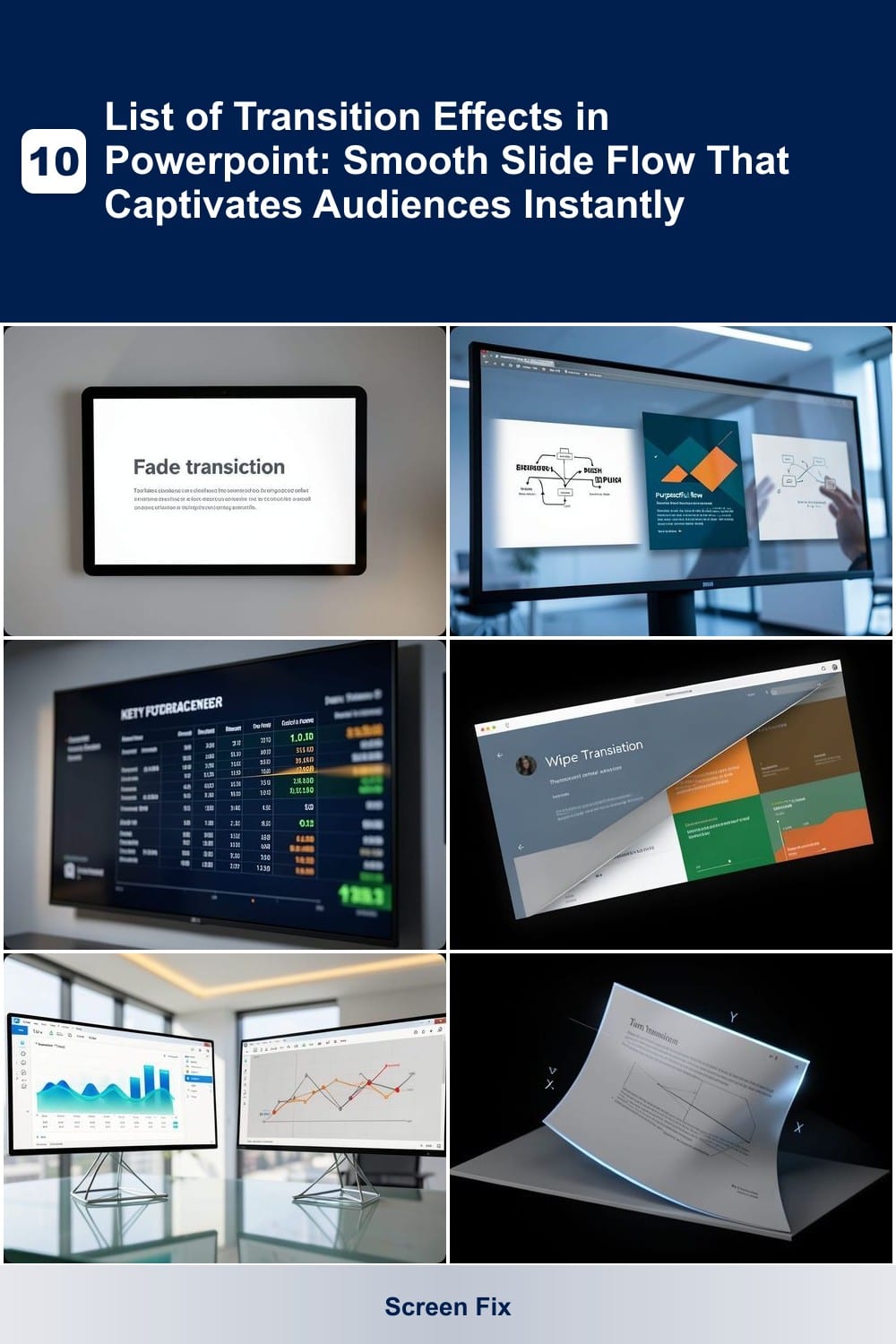
When your presentation demands polish without distraction, the Fade transition in PowerPoint delivers effortless sophistication. Unlike flashy animations, this subtle effect dissolves one slide into the next, ensuring your audience stays focused on your message—not the visuals.
Available in all PowerPoint versions (from 2010 to 365), the Fade transition offers customizable timing (0.1 to 5 seconds) and optional sound effects to reinforce professionalism. Its minimalist approach works seamlessly with corporate themes, academic slides, or investor pitches.
Perfect for executives, educators, or anyone presenting in a formal setting, this transition subtly signals a shift between topics without overpowering your content. 🌟
Slide Push for Dynamic Storytelling
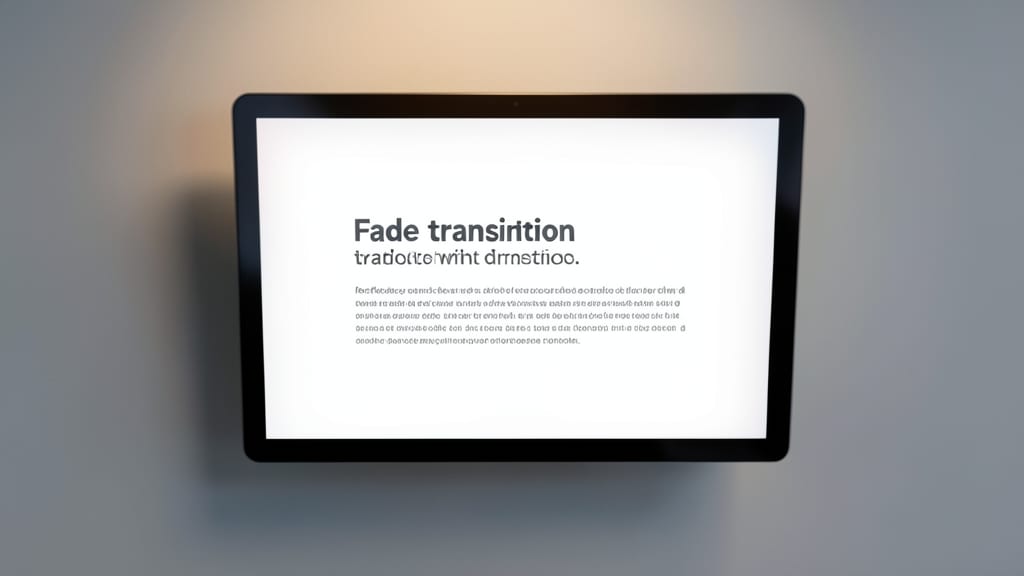
Need to guide your audience through a story or process with purpose? The Slide Push transition turns static slides into a cinematic flow, making each step feel intentional and connected.
Available in PowerPoint 2016 and later, this effect lets you choose between horizontal or vertical pushes, with customizable speed and direction. The subtle motion blur adds realism, while the sequential reveal keeps viewers engaged—ideal for tutorials, case studies, or product demos where pacing matters. Pair it with sound effects for extra emphasis.
Perfect for trainers, marketers, or anyone crafting presentations where momentum builds interest. Just avoid overusing it—keep it as a narrative tool, not a distraction. ✨
Zoom Effect for High-Impact Reveals
Need to make your audience lean in during a product demo or financial forecast? The Zoom Effect delivers that cinematic "wow" by smoothly zooming into your key slides—like a spotlight on your most critical data. Unlike static transitions, this effect creates visual momentum, guiding attention precisely where you want it.
Available in PowerPoint 2013 and later, the Zoom Effect lets you control direction (in/out), speed, and even add sound effects for extra emphasis. Pair it with a dark background and spotlight-style text to amplify the reveal—ideal for launch slides, ROI charts, or executive summaries. Pro tip: Use it sparingly to avoid overwhelming your audience.
Perfect for sales teams, investors, or educators presenting high-stakes content. Just one well-timed zoom can turn a good slide into an unforgettable moment. ✨
Wipe Transition for Clean Visual Breaks
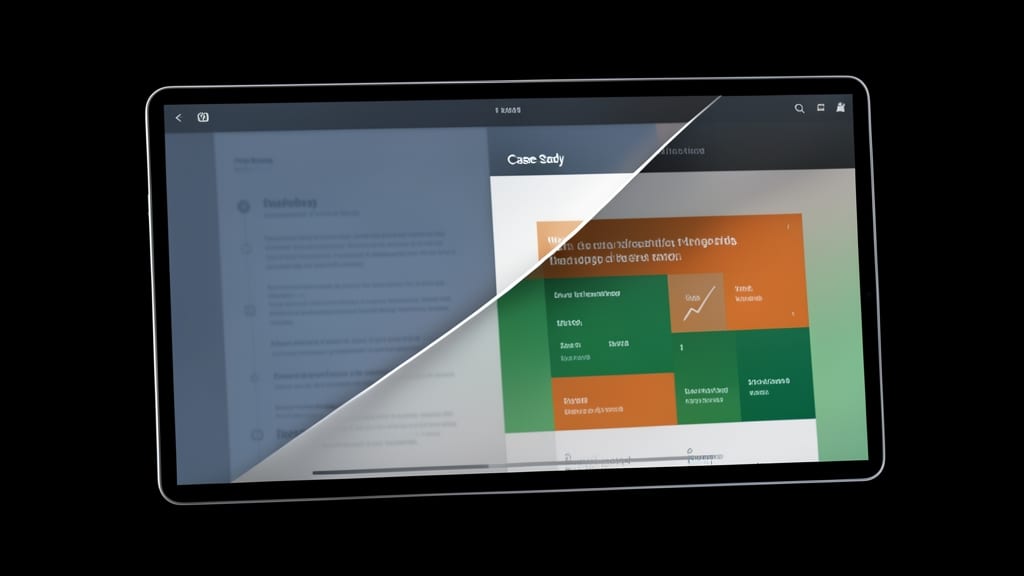
When your presentation needs to signal a clear shift between topics—like moving from theory to case studies—Wipe Transition delivers a sharp, intentional break without visual chaos.
Available in horizontal, vertical, or diagonal directions, this transition replaces the outgoing slide with a clean sweep, ensuring no lingering distractions. It’s built into PowerPoint 2013 and later, including Office 365, and works seamlessly across Windows and Mac. The effect’s simplicity makes it ideal for lectures or training modules, where structure keeps audiences engaged.
Perfect for educators or researchers, this transition subtly reinforces your presentation’s organization—no flashy distractions, just polished clarity. ✨
Morph Transition for Seamless Data Updates
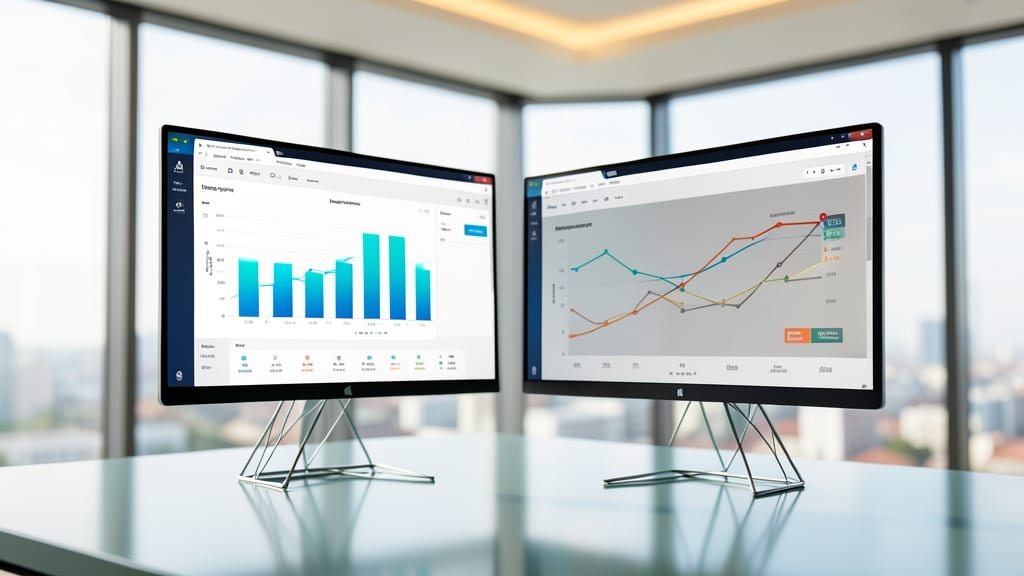
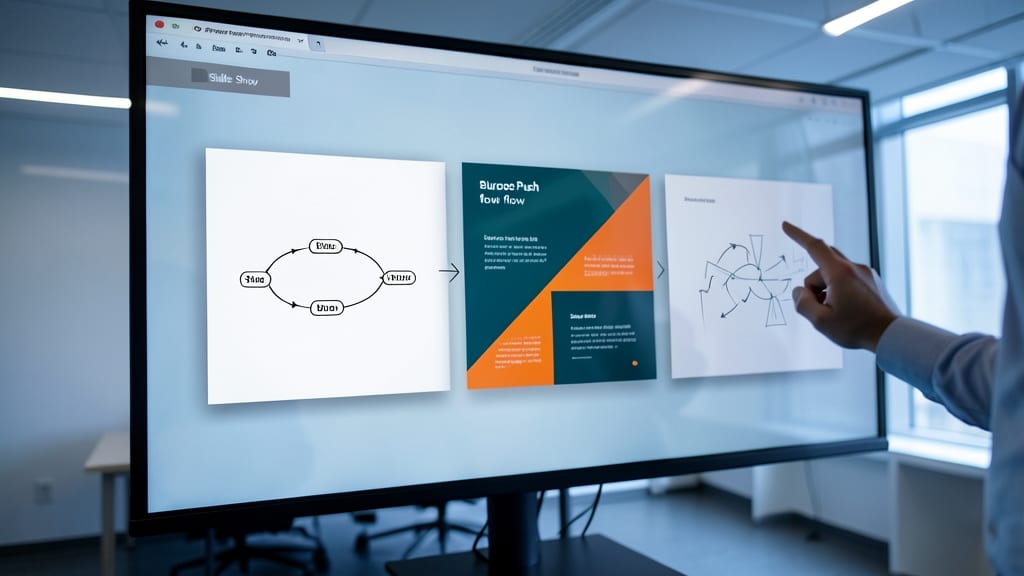
When your data tells a story that evolves in real time—like live sales metrics or shifting project timelines—you need a transition that keeps the focus on the numbers, not the animation. The Morph transition in PowerPoint (available in PowerPoint 2016 and later) lets you smoothly animate changes between slides, making it perfect for presentations where precision matters.
This transition works by morphing one slide into another, preserving layout and content while adjusting only the elements you specify. For example, you can update a single data point in a chart while keeping the rest of the slide intact. It’s ideal for live dashboards or comparative analyses, where audiences need to track changes without losing context. The transition is also customizable—adjust timing or add sound effects to match your presentation’s tone.
Data analysts, finance teams, and researchers will find Morph indispensable for maintaining clarity during dynamic updates. Just ensure your slides have consistent layouts to maximize its effectiveness. ✨
3D Turn Transition for Creative Presentations
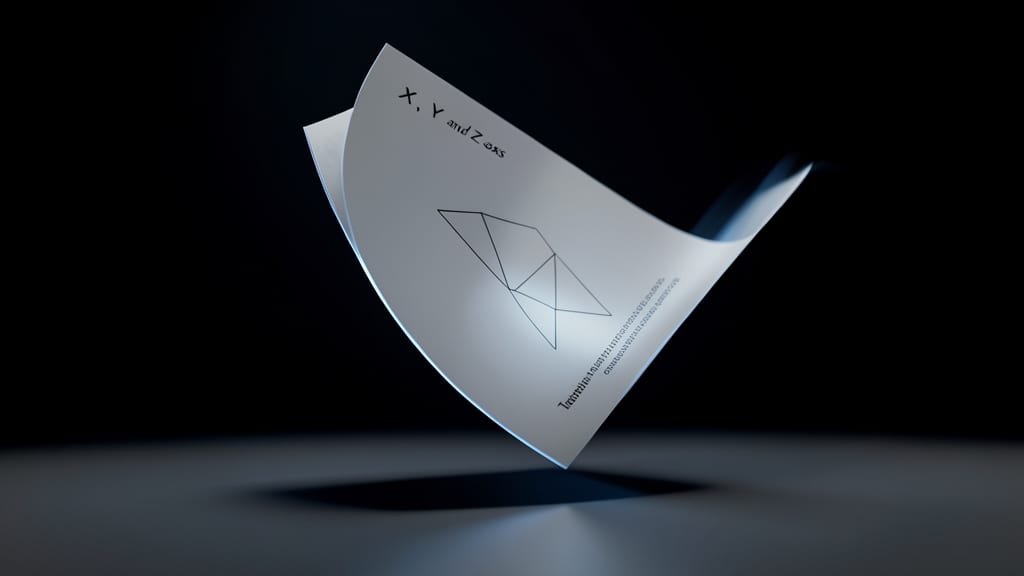
When your presentation needs to feel fresh but avoid the gimmicks, the 3D Turn Transition delivers a sleek, dimensional twist that elevates creative projects. Unlike flat transitions, this effect rotates slides along the X, Y, or Z-axis, adding depth without sacrificing readability—ideal for designers, artists, or anyone showcasing visual portfolios.
The transition works seamlessly in PowerPoint 2016 and later, including the desktop and online versions, with customizable rotation angles and speed controls. Pair it with a solid background (not gradients) to maximize the 3D impact, and use it sparingly—once per section—to highlight key moments like design concepts or before-and-after comparisons.
Perfect for creative professionals pitching visual work or educators teaching spatial design, this transition turns slides into interactive canvases. Just don’t overdo it—less is more for keeping the focus on your content. ✨
Custom Path Transition for Unique Branding
When your brand’s visual identity demands more than generic slide movements, Custom Path Transition lets you craft a signature motion that aligns perfectly with your company’s aesthetic.
Available in PowerPoint 2016 and later, this feature lets you draw freeform paths (straight lines, curves, or even logos) for slides to follow. Combine it with custom colors and timing adjustments to match your brand palette—ideal for tech demos, creative pitches, or internal training decks where visual consistency matters.
Marketing teams and design agencies will love this for client presentations where every detail reinforces brand recognition. ✨