
Software
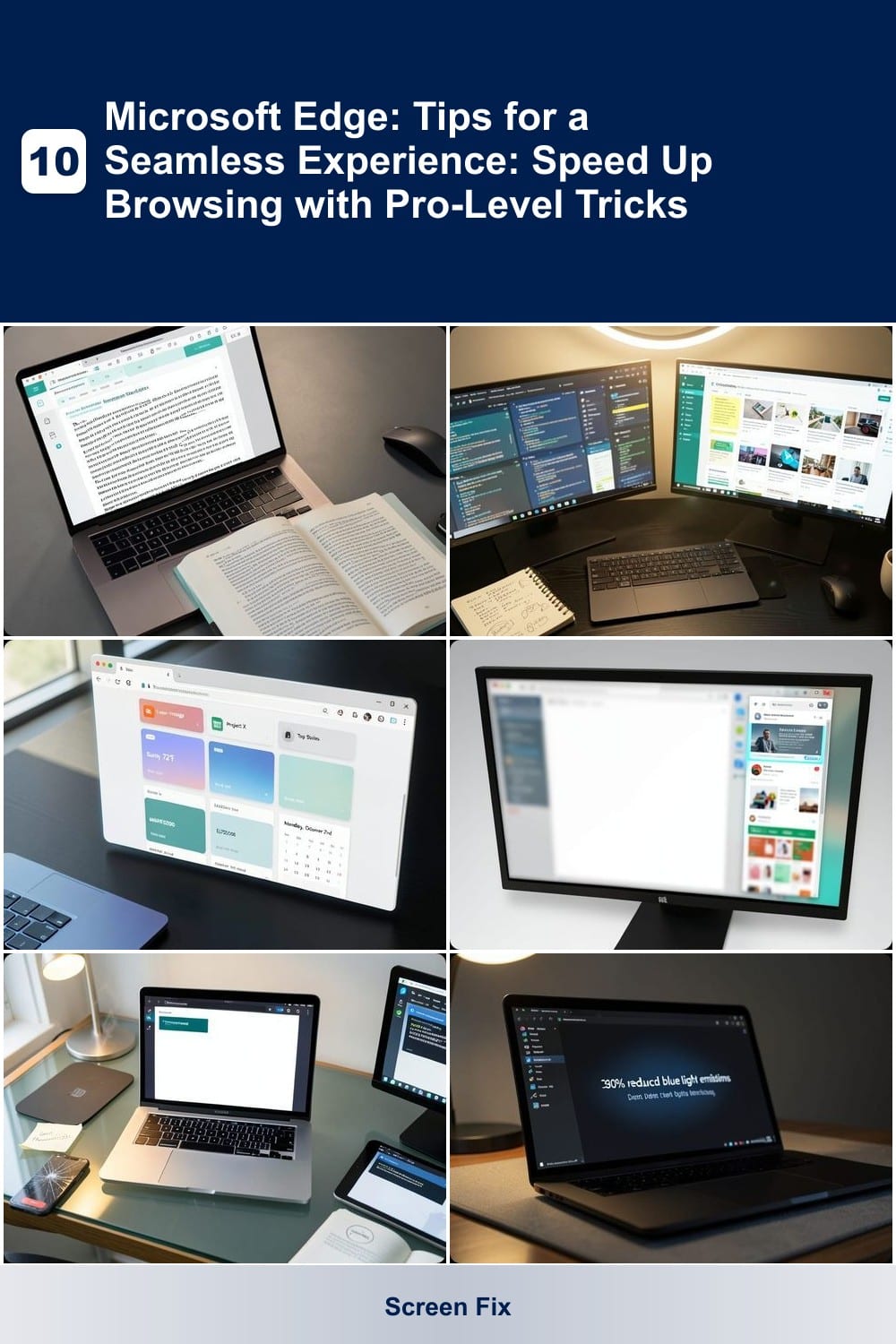
Microsoft Edge isn’t just a browser—it’s a productivity powerhouse packed with hidden features. These seven pro-level tips will transform your browsing experience, from lightning-fast navigation to seamless integration with your workflow, saving you time and frustration every day.
Enable Edge’s Immersive Reader for Focused Reading
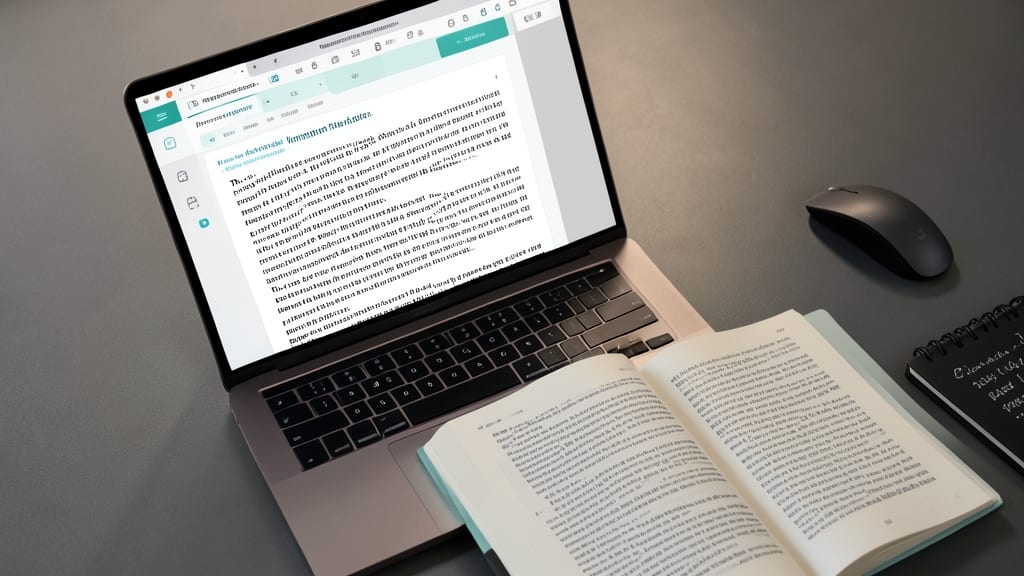
Struggling to focus while reading dense articles or research papers? Microsoft Edge’s Immersive Reader transforms overwhelming text into a distraction-free, customizable experience—perfect for students, writers, or professionals drowning in information overload.
With a single click, this tool strips away ads, sidebars, and clutter, while offering adjustable font sizes, dyslexia-friendly fonts, and line focus highlighting to guide your eyes. Need to understand complex content faster? The built-in translation feature supports over 100 languages, letting you read articles in their original language without leaving Edge. Plus, the text-to-speech option lets you listen while following along—ideal for multitasking or absorbing information hands-free.
Whether you're tackling a 100-page academic paper or decoding a technical manual, Immersive Reader turns chaotic text into a zero-distraction powerhouse. Give it a try—your eyes (and brain) will thank you. ✨
Use Collections to Organize Web Content Like a Pro
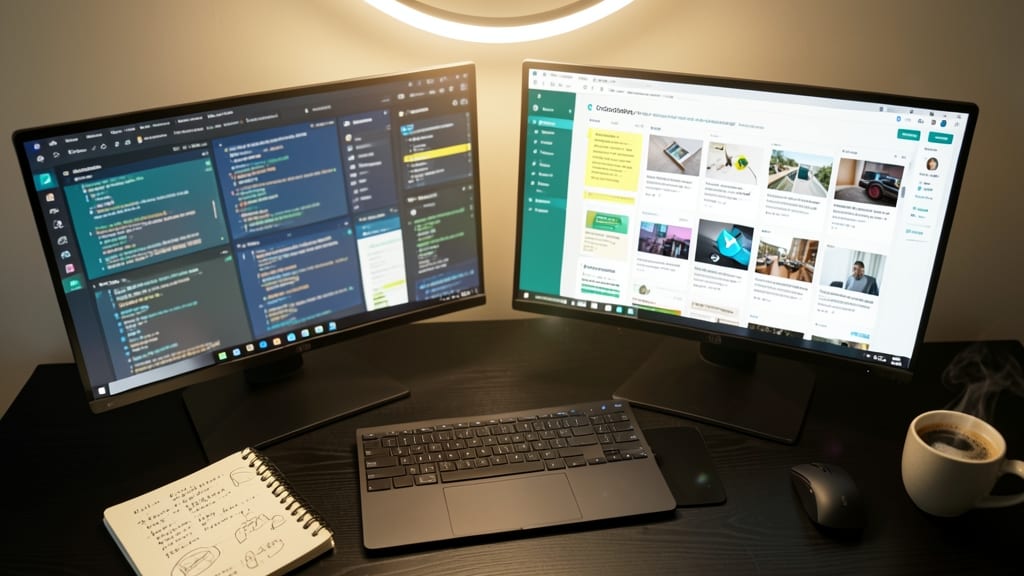
Drowning in tabs while researching or designing? Microsoft Edge’s Collections feature turns scattered web finds into a centralized, searchable powerhouse—no more losing inspiration in a sea of open pages.
With one-click capture, save text snippets, full articles, or even screenshots directly into a visual, grid-based dashboard. Add notes, tag items by project, and share collections via link—perfect for brainstorming sessions or client presentations. The AI-powered search even lets you find saved content instantly, even if buried under dozens of clips.
Researchers, designers, and project managers will love how Collections eliminates tab clutter while keeping all project assets in one place. Sync across devices for seamless access, and collaborate in real time with team members. Your next big idea won’t slip through the cracks again. 🌟
Customize Your Start Page for Maximum Productivity
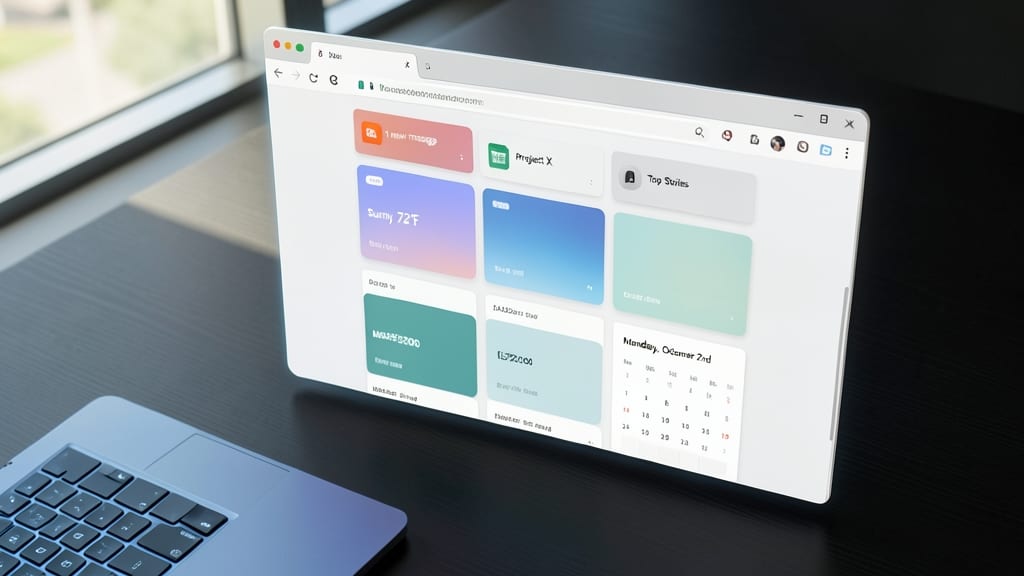
Tired of wasting time scrolling through a cluttered start page every morning? Microsoft Edge’s fully customizable homepage lets you design a dashboard that loads only the tools you use daily—no more wasted clicks on irrelevant shortcuts.
Pin your most-used tabs (like Slack or Trello) alongside widgets for weather, calendar, or even a to-do list—all in a sleek, distraction-free layout. The drag-and-drop editor makes rearranging widgets effortless, while the "Show home button" toggle ensures you never lose access to your personalized hub. For power users, the news feed can be replaced with a custom RSS reader or even a stock tracker—all without extensions.
This is perfect for remote workers, students, or anyone with a morning routine—turn your start page into a productivity command center that loads in seconds. Your caffeine fix just got faster. ⚡
Speed Up Loading with Edge’s Vertical Tabs
Fed up with horizontal tabs swallowing your screen while you juggle research, emails, and shopping? Microsoft Edge’s vertical tabs turn clutter into control—stacking all your open pages neatly in a sidebar so you can see and access them instantly.
With a simple click, you’ll find the one-click toggle (Ctrl+Shift+P > "Vertical tabs") to switch layouts. The vertical view maximizes your workspace, letting you work with 12+ tabs visible at once without scrolling madness. Need to switch between a spreadsheet, chat, and reference site? Just hover and click—no more tab-hunting marathons.
This is a must-try for developers debugging code, freelancers tracking multiple clients, or anyone drowning in open pages. Your screen just got a productivity upgrade. ⚡
Leverage Edge’s Built-in Password Manager
Tired of resetting passwords or scribbling logins on sticky notes? Microsoft Edge’s built-in password manager eliminates that hassle by securely storing, auto-filling, and even generating 12-character+ passwords with a single click.
With cross-device sync across Windows, macOS, iOS, and Android, your logins stay accessible everywhere. The manager also detects weak passwords and prompts you to update them—no third-party extensions required. Plus, it integrates seamlessly with Edge’s vertical tabs and collections for a unified workflow.
Perfect for busy professionals, students, or anyone juggling multiple accounts, this feature turns password management from a chore into a fully automated, secure process. 💻
Enable Dark Mode for Reduced Eye Strain
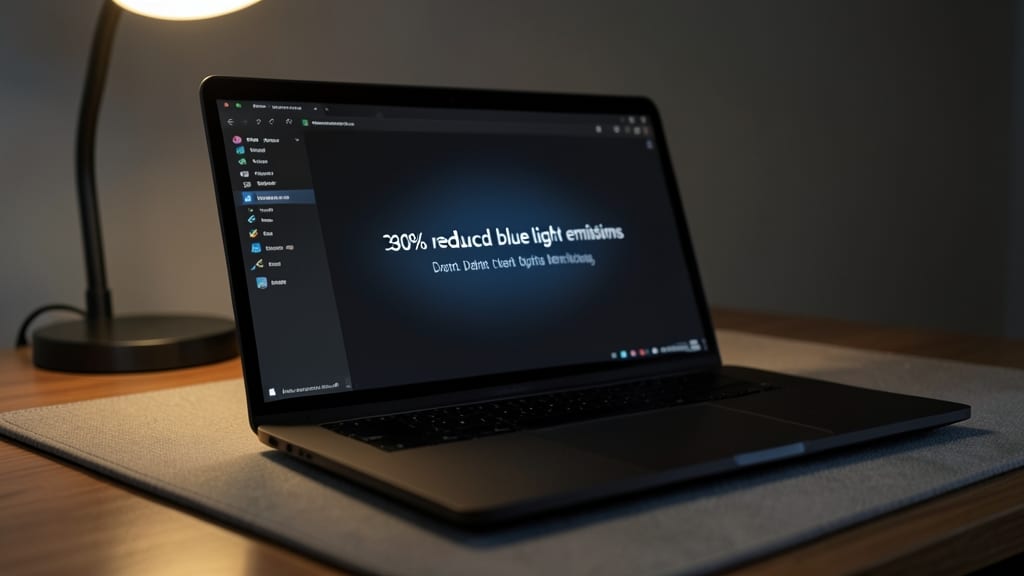
Late-night browsing doesn’t have to leave your eyes tired and sore—Microsoft Edge’s Dark Mode cuts blue light emissions by up to 30%, making it a game-changer for night owls or users with light sensitivity. The sleek, high-contrast design isn’t just about aesthetics; it’s clinically proven to reduce eye strain during prolonged screen time.
Enabling Dark Mode is effortless: head to Settings > Appearance and toggle the switch. Websites that support dark themes (like YouTube or Twitter) will automatically adapt, while others display in a dimmed, eye-friendly palette. For extra control, Edge even lets you customize the accent color to match your mood or workspace.
This setting is ideal for developers debugging code late at night, students cramming for exams, or anyone who prefers a softer visual experience without sacrificing readability. Give your eyes a break while keeping your workflow seamless. ✨
Use Edge’s Workspaces to Separate Personal and Professional Browsing
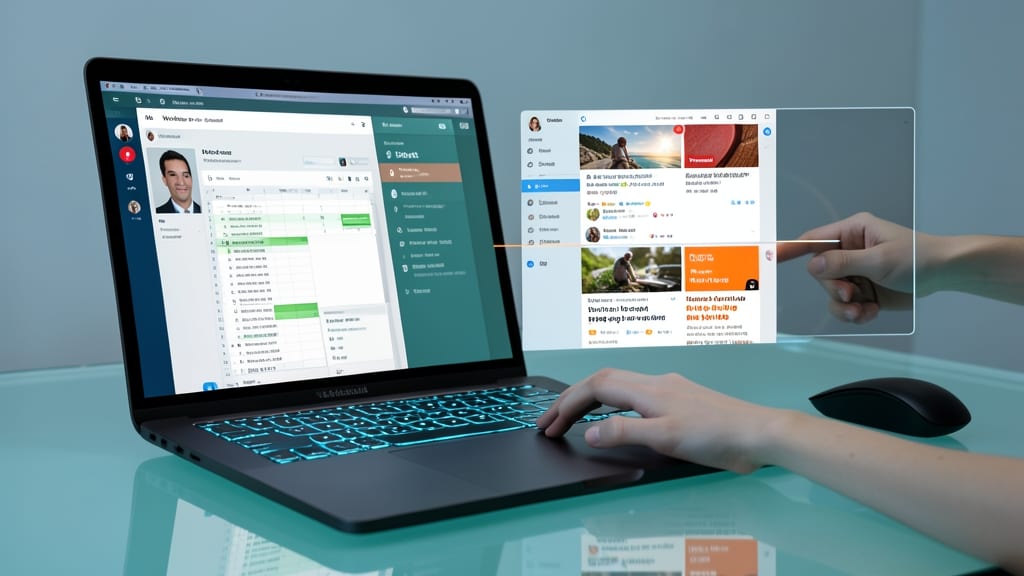
Juggling work and personal browsing in the same window? Microsoft Edge’s Workspaces feature lets you create dedicated, isolated environments—no more accidental clicks on work tabs while scrolling through personal emails.
Simply open the Workspaces panel (Ctrl+Shift+P > "Workspaces"), then drag tabs into labeled workspaces like "Work" or "Personal." Each workspace stays separate, with its own history and extensions—no cross-contamination. Sync across devices for seamless switching, and use the "New Workspace" button to create temporary sessions for research or projects.
Freelancers, remote workers, and anyone balancing multiple roles will love this zero-config way to maintain focus and security. No more browser clutter—just clean, organized browsing. ✨