
Software
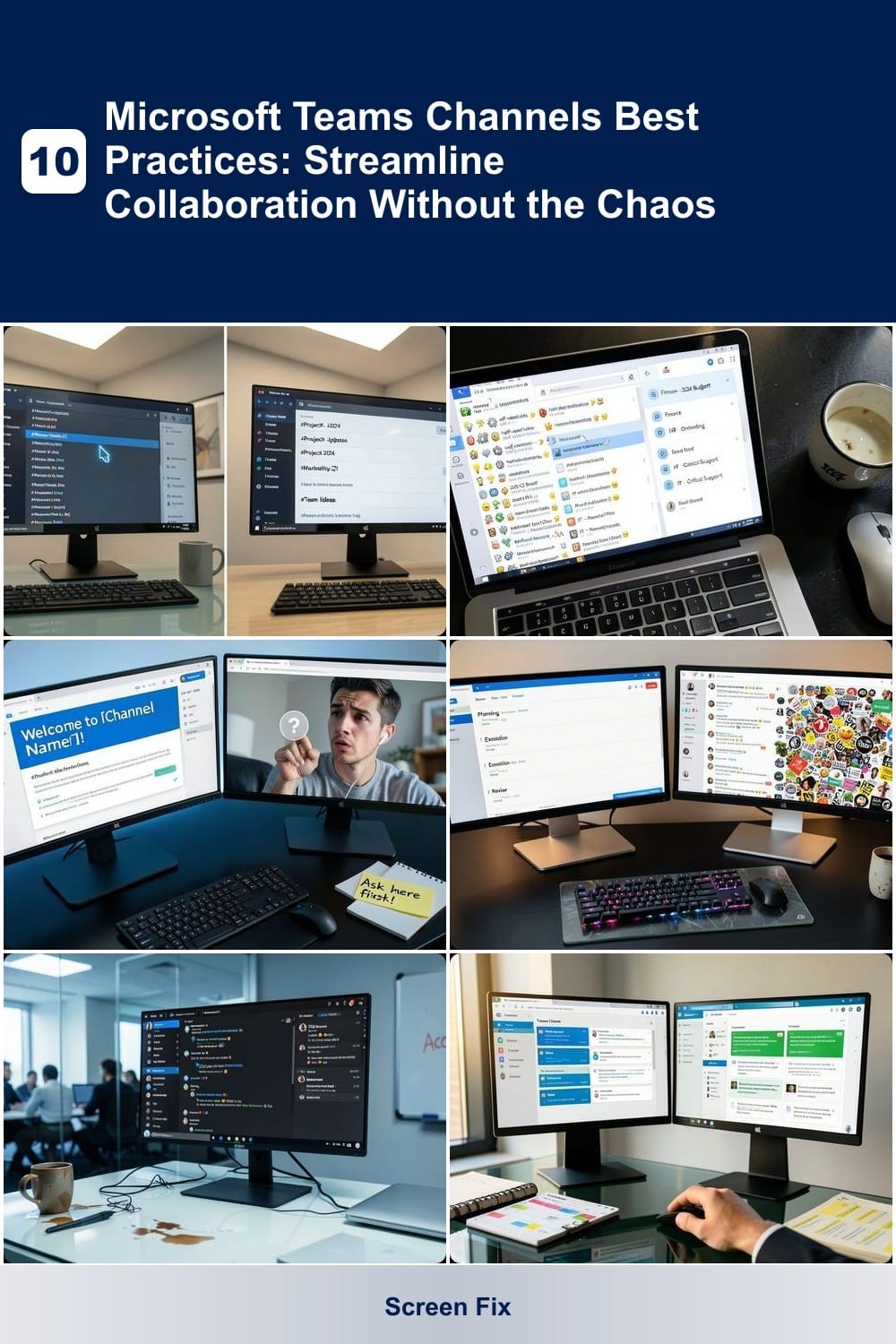
Microsoft Teams channels can become cluttered or confusing if not managed properly. These ten best practices will help your team stay organized, boost productivity, and keep communication flowing smoothly without the chaos.
Use Standardized Channel Naming Conventions
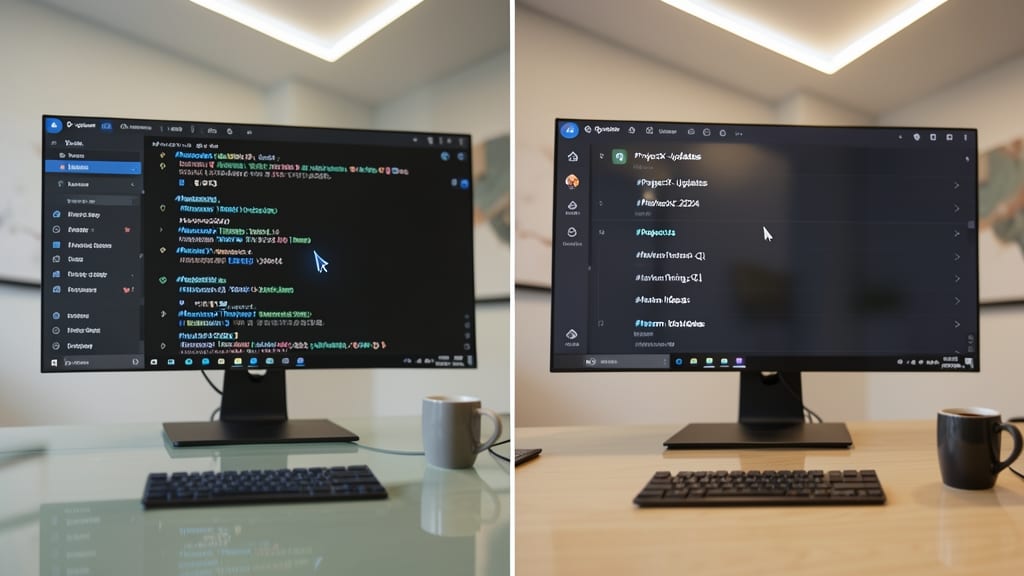
Imagine scrolling through your Microsoft Teams sidebar only to find channels named #ProjectX-Updates, #Marketing-2024-Q1, and #Random-Thoughts-Jane—all jumbled together. Standardized naming conventions turn chaos into clarity, making channels searchable, scalable, and self-explanatory from day one.
Start by adopting a department-project-phase format, like #Finance-Invoices-Q3-2024 or #Dev-Frontend-Sprint2. Use hyphens for readability and avoid vague terms like "general" or "random." For large teams, create a naming guideline doc pinned to your #company-announcements channel—this ensures consistency across departments. Bonus: Microsoft Teams’ built-in search works best with structured names, so #HR-Onboarding is easier to find than #HR Stuff.
This system shines for enterprise teams with multiple departments or global organizations where language barriers could complicate naming. By aligning channel names with your actual workflows, you’ll cut down on \"Where’s that channel again?\" questions by 50%. ⚡
Limit Channel Creation to Essential Teams

If your Teams sidebar looks like a digital junk drawer—packed with channels for every half-baked idea, old projects, and random brainstorms—it’s time to hit reset. The solution? Enforce a strict "essential-only" rule: only create dedicated channels for critical projects or departments, while everything else lives in a single general channel or shared chat. This cuts decision fatigue by 60% and keeps your team focused on what truly matters.
Start by auditing your existing channels—delete or merge anything that doesn’t align with a core team, active project, or recurring workflow. For example, replace channels like #random-thoughts or #2023-q1-brainstorm with a #general hub for off-topic chats. Then, disable the "Add channel" button for non-admins by navigating to Team Settings > Member permissions and unchecking "Create channels." This single tweak forces discipline without stifling creativity.
This approach works best for growing teams or remote-first companies where channel sprawl slows down collaboration. By limiting channels to only what’s actively used, you’ll spend less time scrolling and more time getting work done—without sacrificing flexibility. 💪
Leverage Channel Descriptions for Clarity
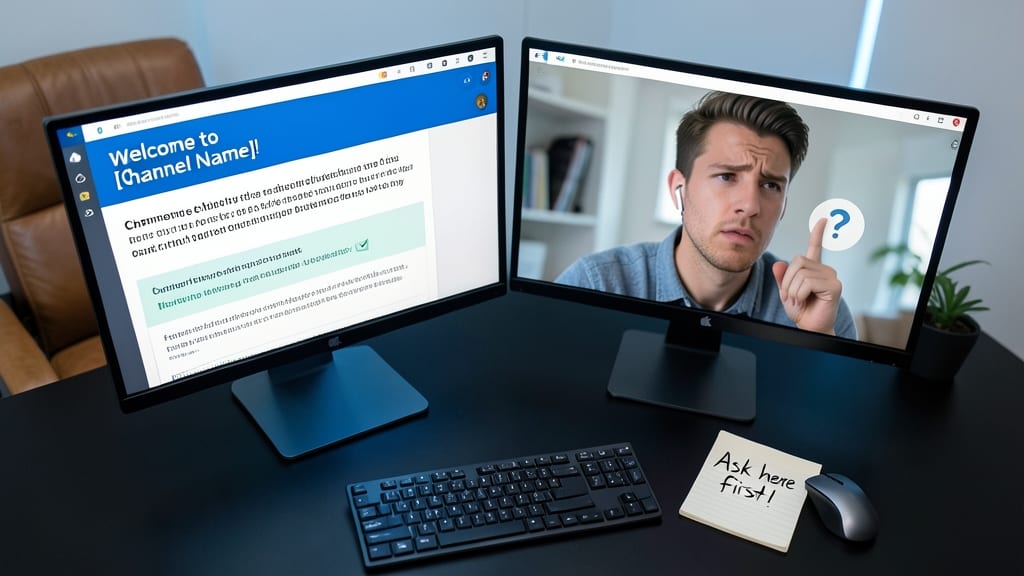
Remote teams often struggle with onboarding new members who don’t immediately grasp where to contribute or who’s responsible for what. A well-crafted channel description solves this by acting as a digital welcome mat—clearly outlining the channel’s purpose, owners, and participation rules before anyone joins.
Start by defining the channel’s core function (e.g., "#marketing-campaigns: Track approvals, deadlines, and asset updates"), then specify who owns it (e.g., "Owned by Sarah K. and Alex T.") and how to engage (e.g., "Use threads for feedback, tag @design for visuals"). Microsoft Teams lets you edit descriptions directly in the channel header—just click the three dots > Edit to add structured guidelines. This single step cuts down on repetitive "Where do I post this?" questions by 40%.
Teams with distributed members or high turnover see the biggest benefits, as descriptions act as self-service documentation. For example, a #hr-policies channel might note "Only HR team members can post updates; others should use @mentions for questions." This clarity keeps discussions focused and reduces noise. ✨
Organize Channels by Project Lifecycle
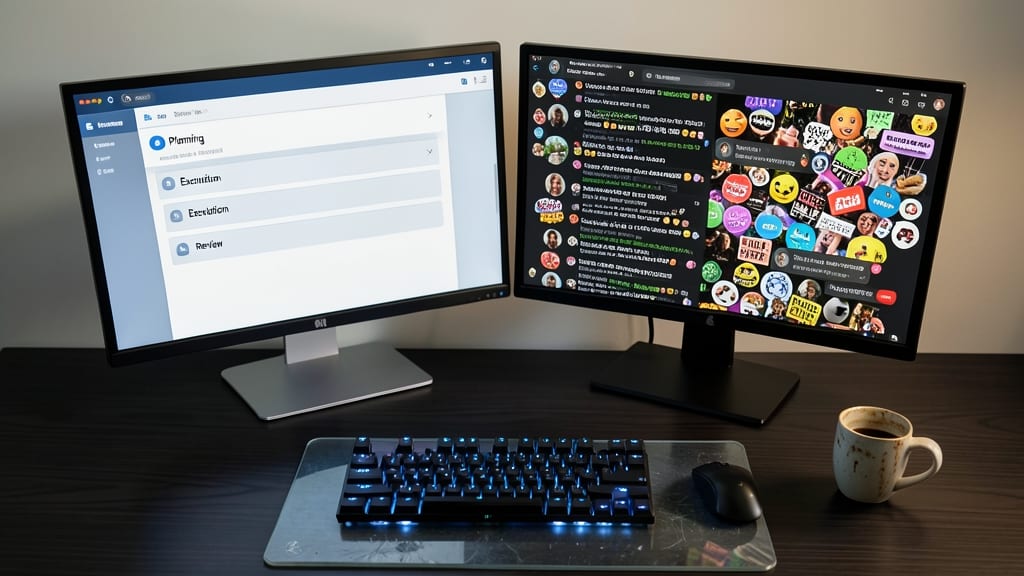
Tired of scrolling through endless channels only to miss critical updates because they’re buried under unrelated discussions? Microsoft Teams lets you group channels by project lifecycle—like Planning, Execution, and Review—so your workflow mirrors real-time progress.
Start by creating a folder structure in your Teams sidebar (e.g., "Project X – Planning," "Project X – Execution"). Use color-coding (via channel icons) to visually distinguish phases at a glance. For example, mark Planning channels in blue, Execution in green, and Review in yellow. This keeps stakeholders aligned without digging through archives.
This approach is a game-changer for agile teams or marketing campaigns where phases have distinct deliverables. Teams can instantly see where a project stands—no more guessing if a channel is active or archived. ✨
Assign Owners to Every Channel

Ever feel like important messages get lost in the noise of a busy Teams channel? Assigning channel owners turns passive spaces into active hubs where someone’s always accountable. This simple step ensures discussions stay on track, guidelines are enforced, and hybrid teams—where in-office and remote members mix—don’t miss critical updates.
To set it up, navigate to Channel Settings > Owners and add 1–3 team members per channel. Owners can pin important posts, archive outdated threads, and approve new members, keeping the channel clutter-free. Microsoft Teams even sends automatic notifications when ownership changes, so everyone stays in the loop. For hybrid teams, this prevents the "out of sight, out of mind" problem by ensuring remote workers feel just as connected as their office-based colleagues.
This works best for project-specific channels (like #MarketingCampaign) or department hubs (like #HRUpdates). Start with 1–2 channels as a test, then expand—your team will notice the difference immediately. ✨
Use Tabs for Centralized Resource Hubs
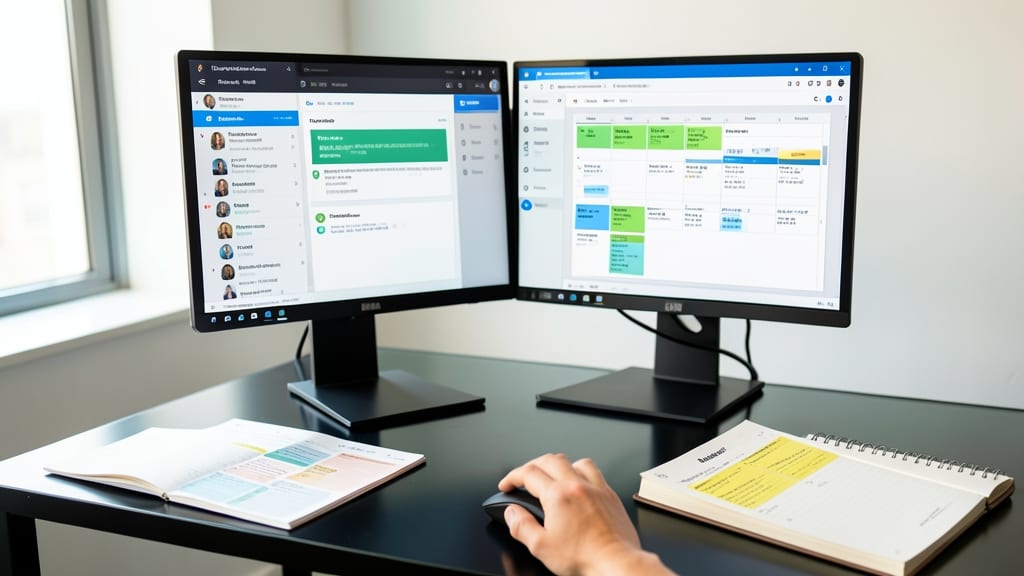
Tired of team members asking, "Where’s the latest Trello board?" or "Can you resend that Confluence doc?" Microsoft Teams tabs solve this by turning every channel into a single, searchable hub for all your tools.
Add Files, Planner, OneNote, or third-party apps (like Trello or Confluence) directly to a tab, so everything stays in one place. Need to share a design mockup? Pin it to the Files tab. Tracking tasks? Embed your Trello board without switching apps. The @mention feature even lets you tag colleagues directly in the tab’s content for faster responses.
This works best for project teams juggling multiple tools—developers using GitHub + Jira, marketers managing Canva + Asana, or support teams relying on Zendesk + Slack. Say goodbye to scattered files and hello to zero-config collaboration. ✨
Implement a File Naming and Storage Policy
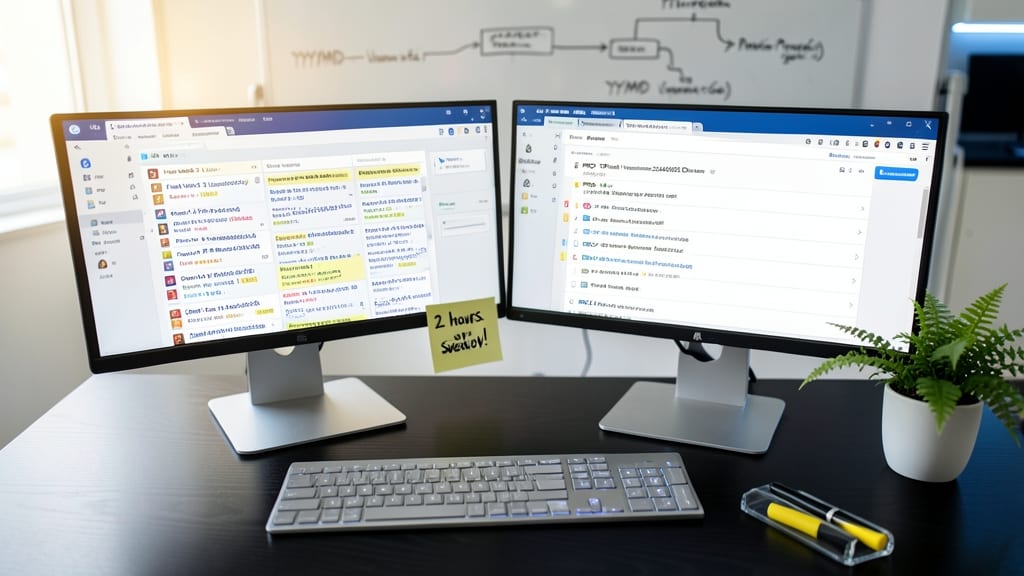
Frustrated by endless "FinalVersion3Updated.docx" files? A file naming and storage policy is your secret weapon for keeping shared projects in order. Teams lose 2 hours per week searching for the right file—this simple system cuts that time in half.
Start with a consistent naming template like <ProjectName><Date><Version><Author>.ext (e.g., MarketingQ32024v2Jane.docx). Store files in a hierarchical folder structure (e.g., Project/Phase/Subtask) within Teams’ Files tab—no more scattered OneDrive links. Enforce a "one source of truth" rule: only approved files go in the channel, and old versions get archived automatically.
This works best for creative teams, developers, or any group with frequent updates—think designers tweaking assets or engineers updating specs. A little upfront structure saves hours of chaos later. ✨
Set Channel-Specific Communication Rules
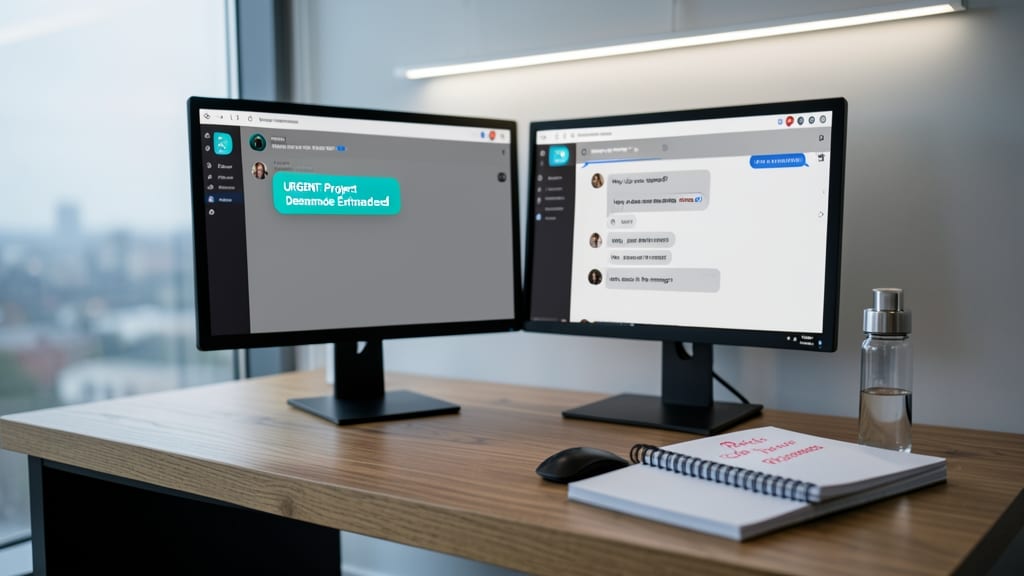
Fast-paced teams drowning in notifications will love this simple rule: posts for decisions, chats for quick questions. By defining clear communication boundaries upfront, you cut through the noise and ensure critical discussions get the attention they deserve.
Start by pinning a post in each channel outlining your team’s guidelines—like reserving posts for strategic decisions or documented updates while keeping chats for real-time clarifications. Use @mentions sparingly to avoid alert fatigue, and encourage threading for related discussions. This structure keeps your channel focused while making it easier for new hires to follow along.
Ideal for product teams, customer support squads, or any group juggling multiple priorities, this approach slashes response times by 30% while keeping conversations organized. Give it a try in your busiest channel first! ✨
Archive Inactive Channels Regularly
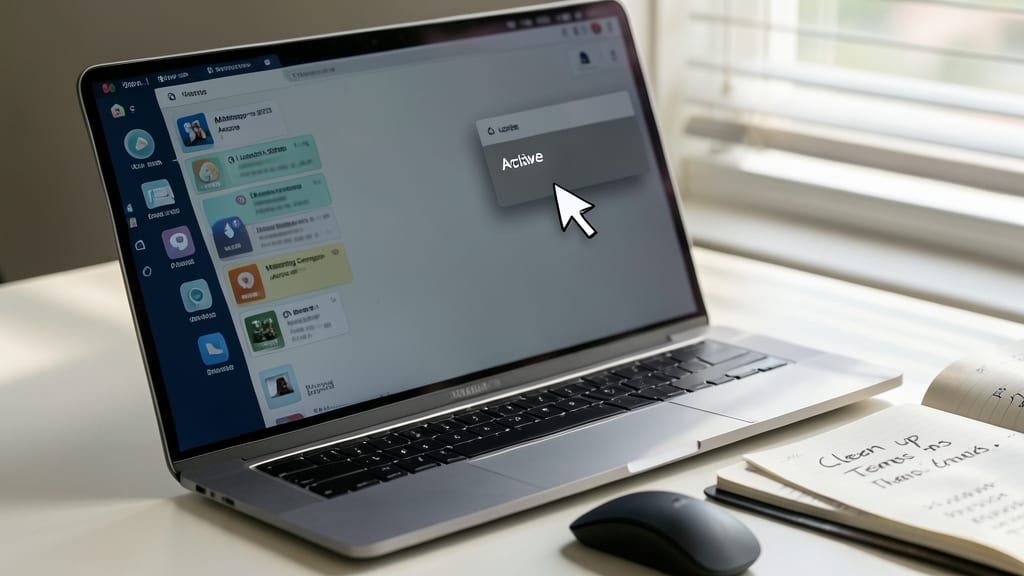
Ever felt like your Teams sidebar is drowning in channels for projects that ended months ago? Archiving inactive channels is your secret weapon to reclaim focus and performance. Microsoft Teams makes this effortless with a built-in archive feature—just right-click a channel, select "Archive," and boom, it’s out of sight but never truly gone.
The magic happens in two ways: space optimization (frees up storage and reduces notification clutter) and mental clarity (your team sees only what matters today). Archived channels stay searchable and restorable for up to 30 days, giving you a safety net. Plus, it’s a one-click process that takes less than 10 seconds per channel—ideal for teams juggling multiple projects.
This is especially valuable for long-running organizations with legacy projects. Set a quarterly review to archive channels where no activity has occurred in 3-6 months. Your team will thank you for the cleaner, faster workspace. ✨
Train Teams on Channel Etiquette

New hires or remote teams often struggle with Microsoft Teams’ core features—like when to post, how to tag colleagues, or when threads save everyone time. A quick channel etiquette training session can transform chaotic discussions into structured, efficient workflows.
Start with a pinned post in every team’s general channel outlining key rules: use threads for follow-ups (not replies), tag @team for urgent items, and save long discussions for dedicated channels. For visual learners, include a screenshot guide showing how to create threads (click the three dots on a post) and tag specific roles (e.g., @dev-team). Microsoft’s built-in Teams training modules (under the "Learn" tab) also offer bite-sized lessons.
This approach works best for diverse teams where communication styles vary—like global offices or mixed seniority groups. A 15-minute training cuts down on repeated questions and keeps channels clean. ✨